|
|
||||||
|
|
||||||
Endnote 2025 Installation Instructions |
||||||
|
|
||||||
|
|
||||||
|
|
||||||
|
|
||||||
|
|
||||||
|
|
||||||
|
|
||||||
|
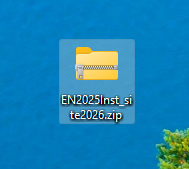
1. Download the Endnote 2025 for Windows zip file you downloaded from your Webstore order. |
||||||
|
|
||||||
|
|
||||||
|
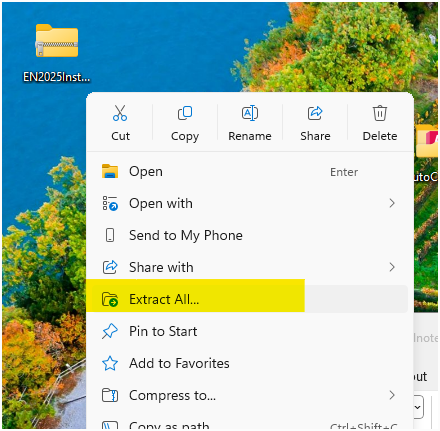
2. Right click the zip file and select Extract All. ****You must FIRST extract this file before proceeding with the install.**** |
||||||
|
|
||||||
|
|
||||||
|
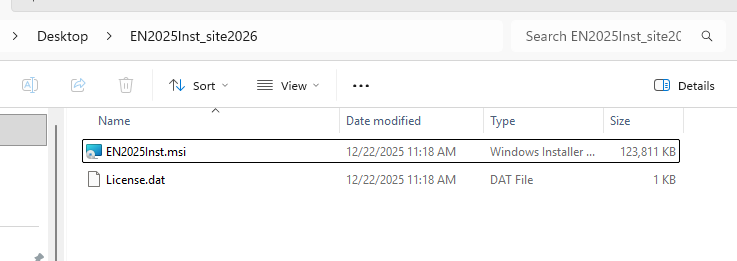
3. A new window will open to the extracted file contents. Double-click the .msi installer file to start the installation process.
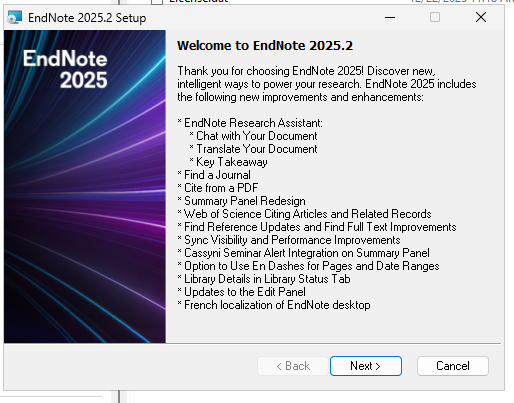
4. The Welcome screen will appear. Click Next.
|
||||||
|
|
||||||
|
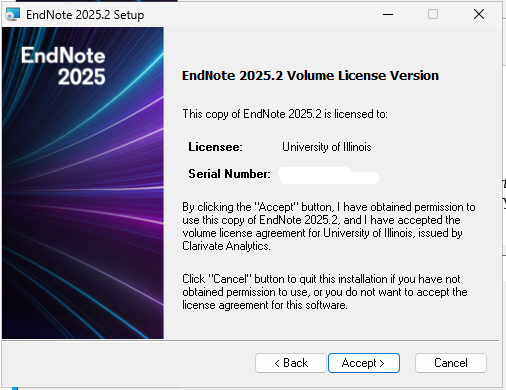
5. Click Accept to accept the license terms. ***The current Serial Number will be filled in for you. If you did NOT extract the zip file properly before starting the installation, this field will not be supplied. Cancel and restart the installation if that is the case.***
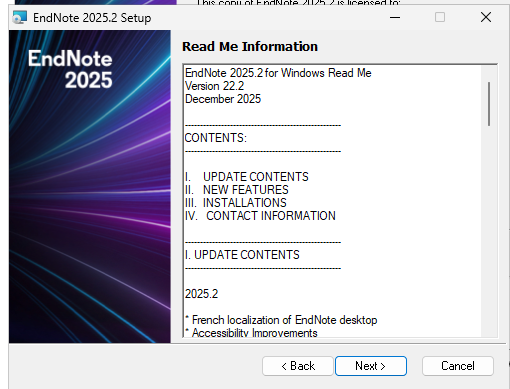
6. Review the Readme information. Click Next
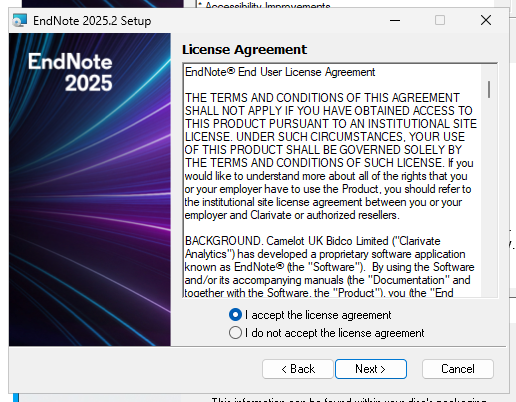
7. Accept the license agreement.
|
||||||
|
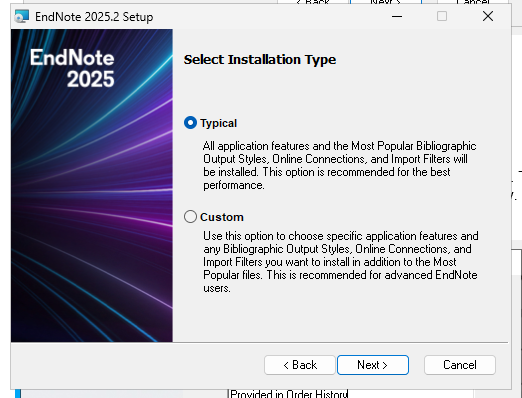
8. Select an installation type and click on Next. |
||||||
|
|
||||||
|
|
||||||
|
|
||||||
|
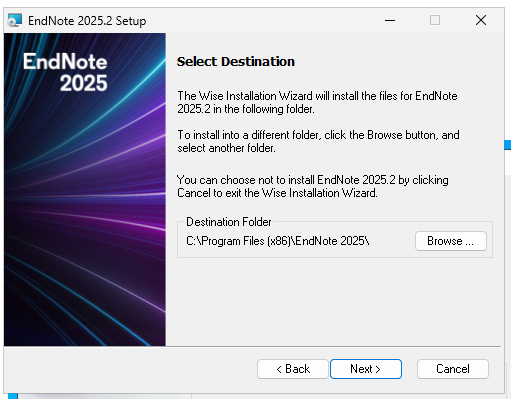
9. Select a destination location and click on Next. |
||||||
|
|
||||||
|
|
||||||
|
|
||||||
|
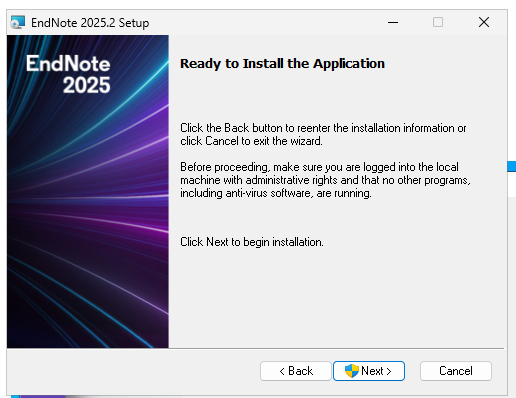
10. Click Next to begin the installation. |
||||||
|
|
||||||
|
|
||||||
|
|
||||||
|
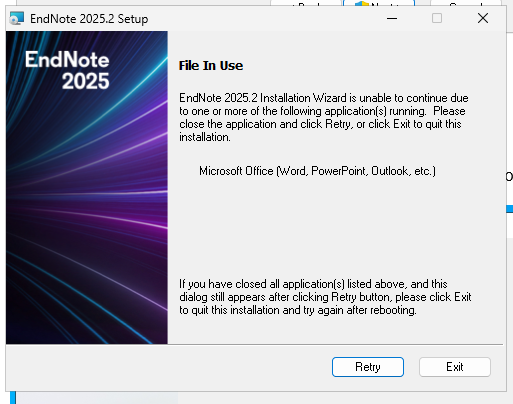
11. If you see this error quit or exit all Microsoft Office 365 applications. |
||||||
|
|
||||||
|
|
||||||
|
|
||||||
|
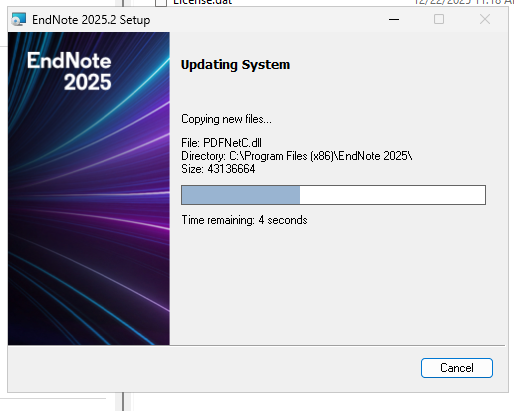
12. The installation will begin and take several minutes. |
||||||
|
|
||||||
|
|
||||||
|
|
||||||
|
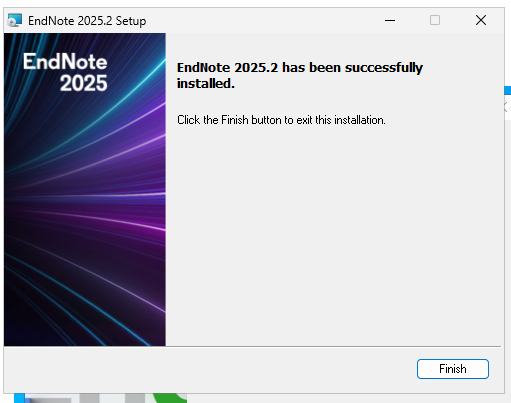
13. The installation is complete. Click on Finish. |
||||||
|
|
||||||
|
|
||||||
|
|
||||||
|
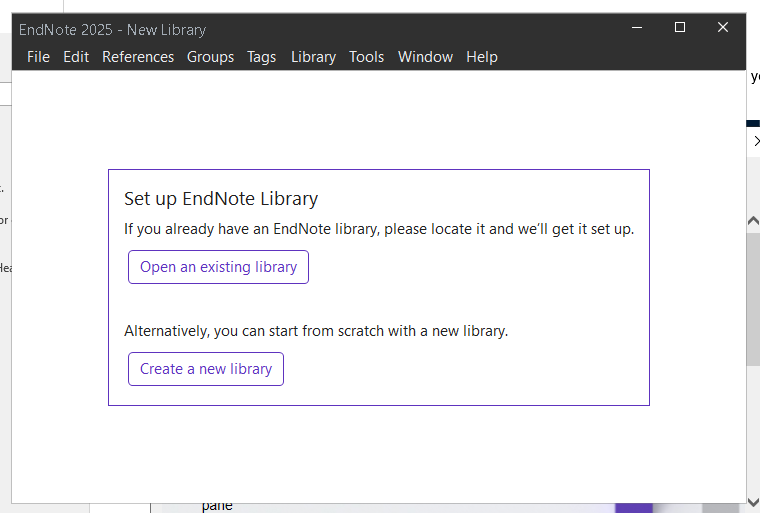
You are now ready to use Endnote 2025 for Windows. Upon launching Endnote for the first time, you may have to agree to the EULA one more time. Also, you may agree to install any of the latest updates for EndNote if you are prompted. |
||||||
|
|
||||||
|
|
||||||
|
|
||||||
|
|
||||||
|
|
||||||
|
|
||||||
|
|
||||||
|
|
||||||
|
|
||||||
|
|
||||||
|
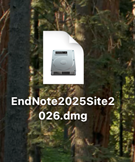
1. Double click on the EndNote21 Installer.dmg file you downloaded from the WebStore. |
||||||
|
|
||||||
|
|
||||||
|
|
||||||
|
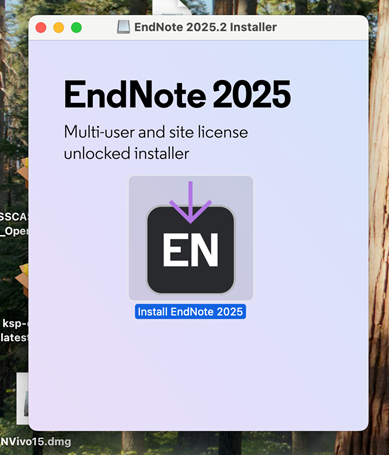
2. The installation will begin. Click Install EndNote 21.app. |
||||||
|
|
||||||
|
|
||||||
|
|
||||||
|
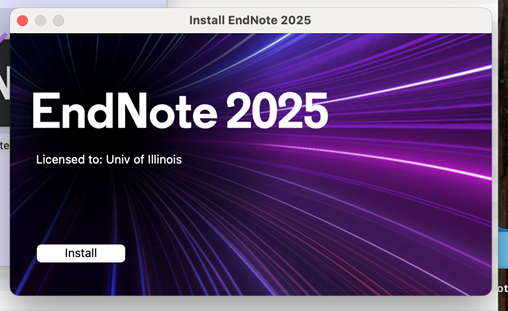
3. Click Install. |
||||||
|
|
||||||
|
|
||||||
|
|
||||||
|
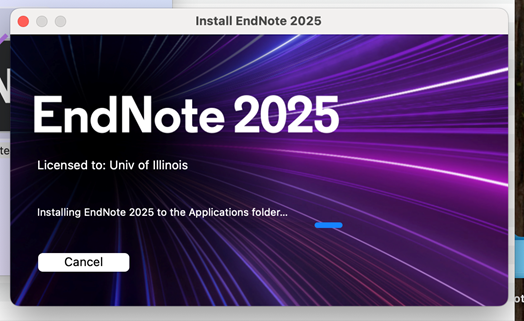
4. The installaion will begin |
||||||
|
|
||||||
|
|
||||||
|
|
||||||
|
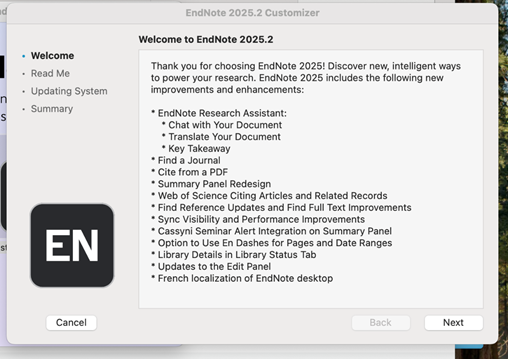
5. Read the EndNote Welcome. Click Next. |
||||||
|
|
||||||
|
|
||||||
|
|
||||||
|
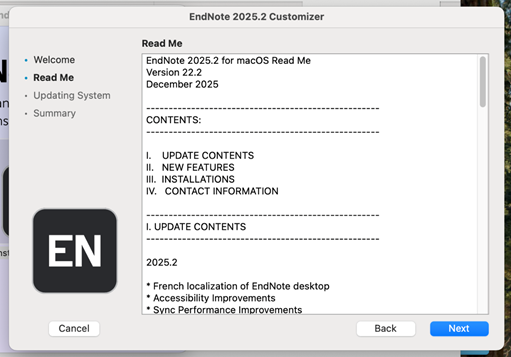
6. Review the Readme and click Next. |
||||||
|
|
||||||
|
|
||||||
|
|
||||||
|
|
||||||
|
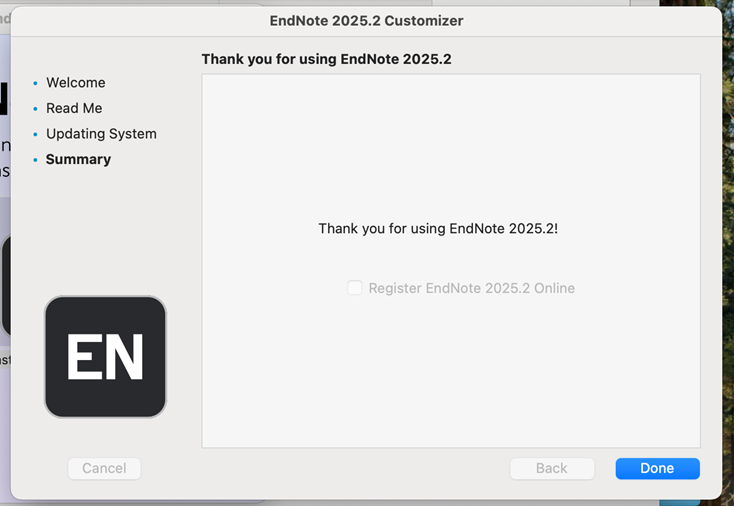
7. Click done with the installation is finished. |
||||||
|
|
||||||
|
|
||||||
|
|
||||||
|
||||||
|
|