|
|
|
|
ETABS 23 Installation Instructions |
|
|
|
Please complete and submit this form to request access to the ETABS cloud license manager. You will receive an invitation to join the campus license via email. The invitation will ask you to create a CSI Account with your U of I email address and a password that you will save. You will use these login credentials to sign in and authorize the ETABS license after you install the software.
|
|
|
|
|
|
|
|
|
|
|
|
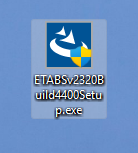
1. Double click the .exe file you downloaded from WebStore. |
|
|
|
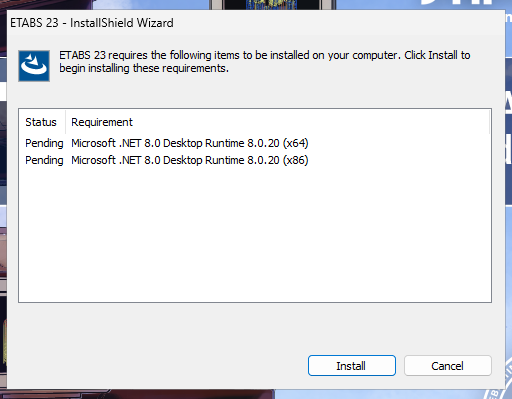
2. On launch you may be required to first install some prerequisites.
|
|
|
|
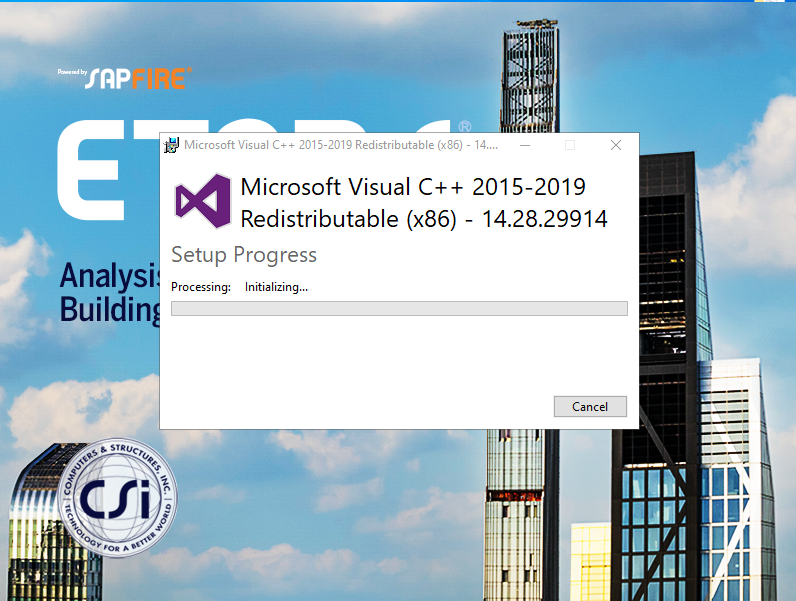
3. The program may setup the Microsoft Visual C++ redistributable package. |
|
|
|
|
|
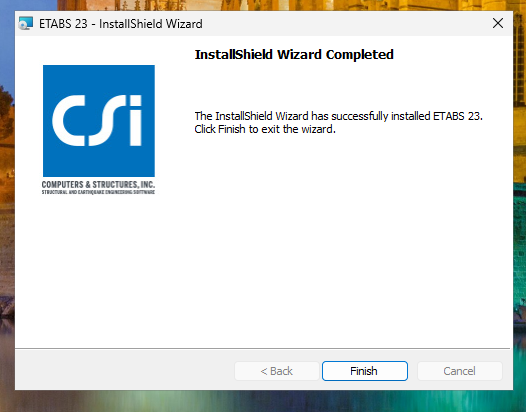
4. The InstallShield Wizard will open. Accept the Eula and start the installation. The install wizard will install ETabs 23. You will receive a confirmation when you are done.
|
|
|
|
|
|
|
|
|
|
|
|
|
|
|
|
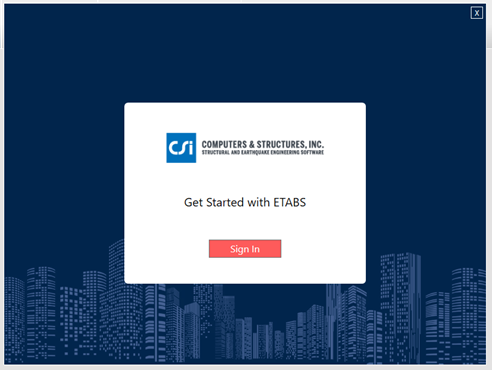
5. Open Etabs from the Start Menu or Applications folder. Click the Sign In Option |
|
|
|
|
|
|
|
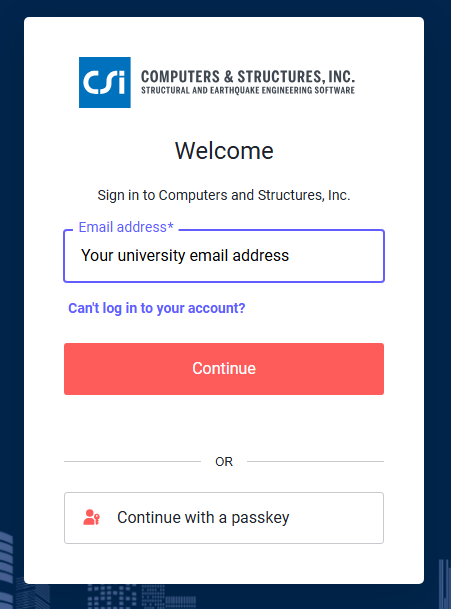
6. Sign-in with your university email address and the password you saved when you created your CSI account. |
|
|
|
|
|
|
|
7. You are now ready to use ETABS. |
|
|
|
|
|
|
|
|
|
|