|
|
|
|
|
|
MATLAB Sign-In and Installation Instructions |
|
|
|
|
|
|
|
|
|
|
|
|
|
|
|
|
|
|
|
|
|
|
|
|
|
|
|
|
|
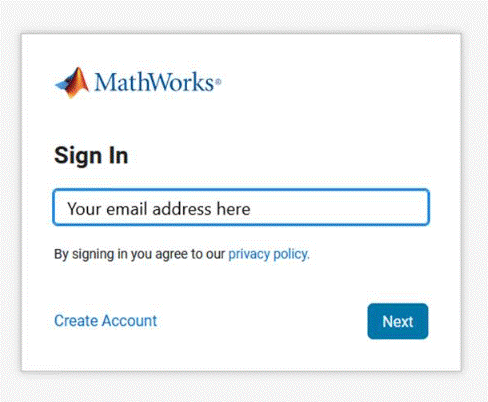
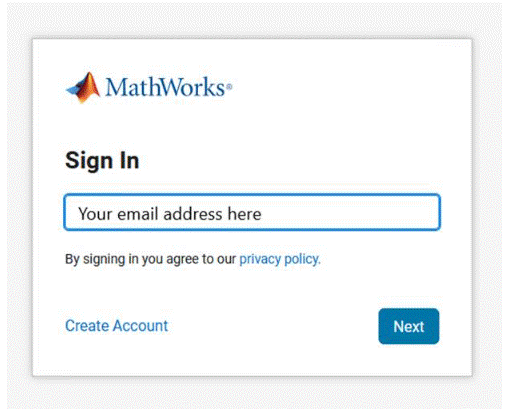
2. Enter your university email address. |
|
|
|
|
|
|
|
|
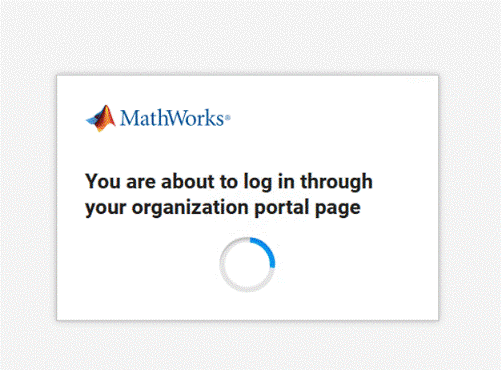
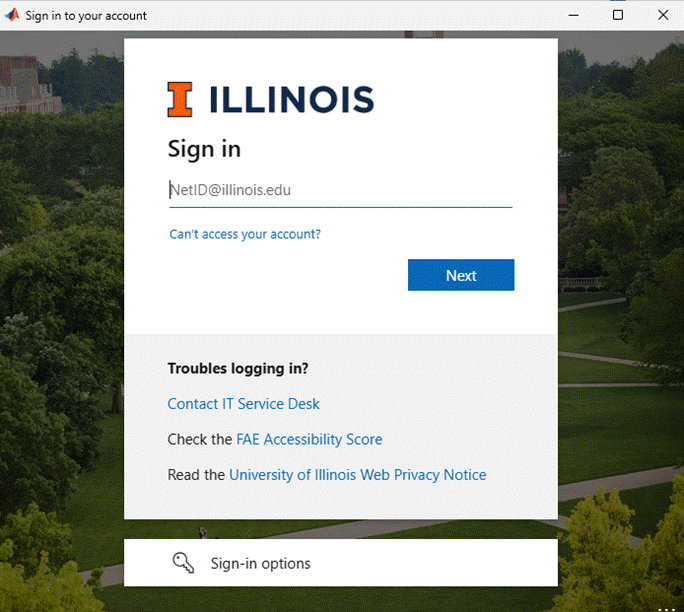
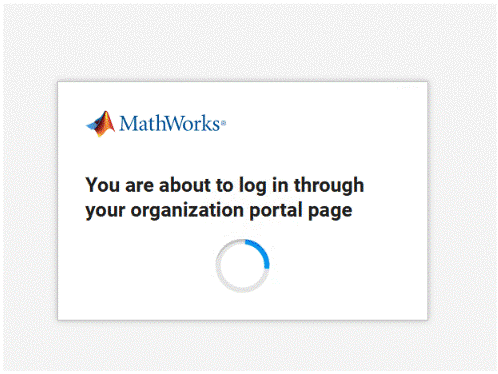
3. You will be directed to your campus authentication page. You will be able to identify it by familiar branding. |
|
|
|
|
|
|
|
|
|
|
|
|
|
|
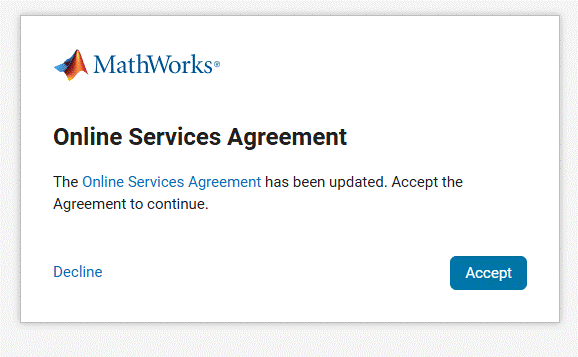
4. Accept the Online Services Agreement |
|
|
|
|
|
|
|
|
|
|
|
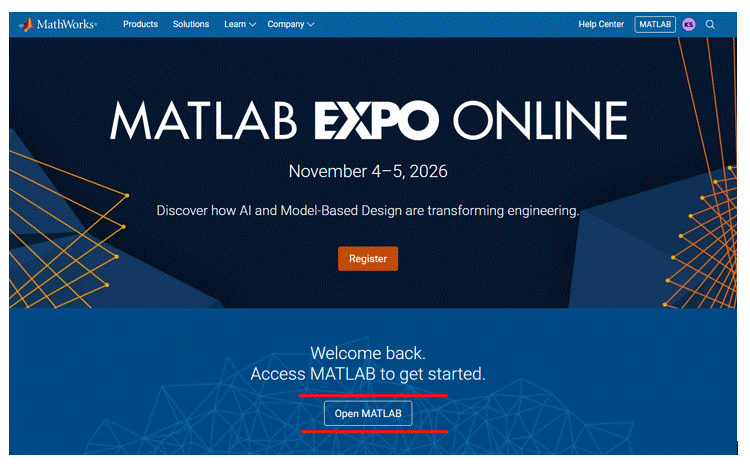
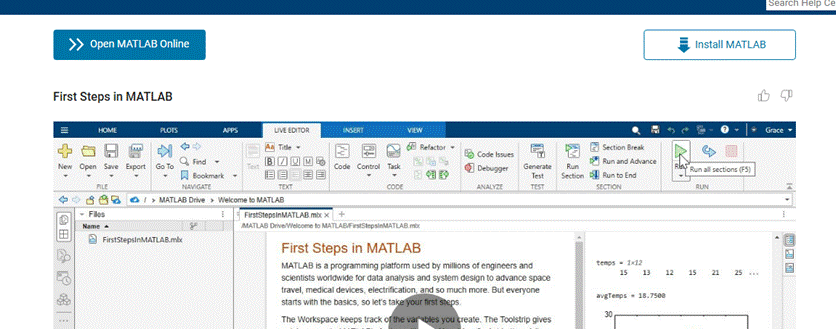
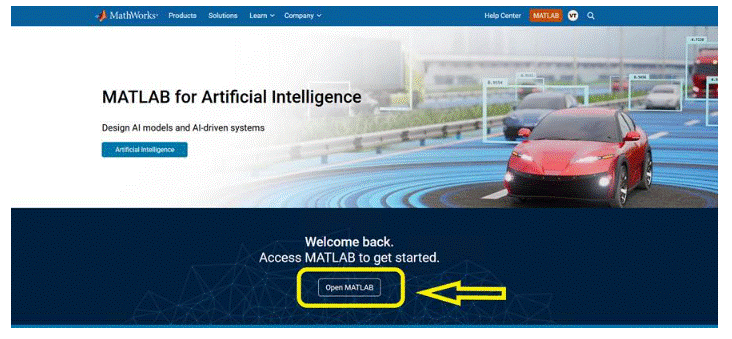
5. Your Matlab account will be created. Locate the Open Matlab button at the bottom of the page. |
|
|
|
|
|
|
|
|
|
|
|
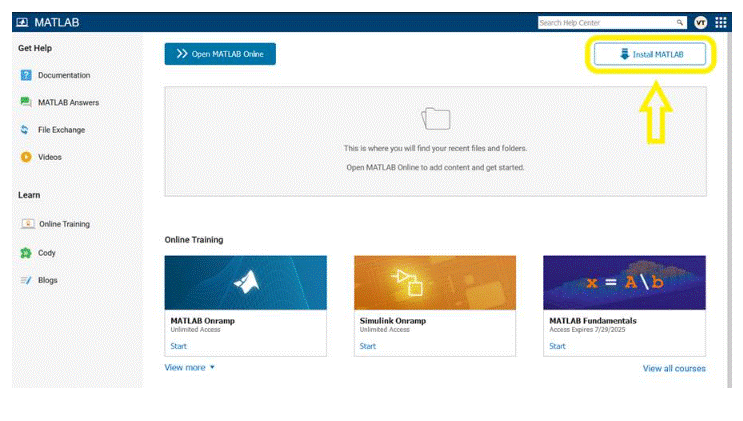
6. On this page click Install MATLAB. |
|
|
|
|
|
|
|
|
|
|
|
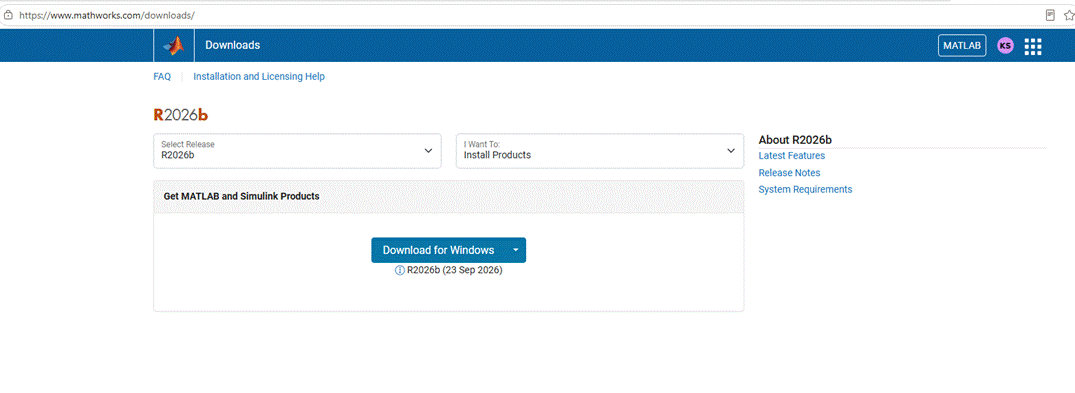
7. Choose the appropriate version or release of MATLAB to install as well as the operating system of your computer. You have the option to install previous versions. |
|
|
|
|
|
|
|
|
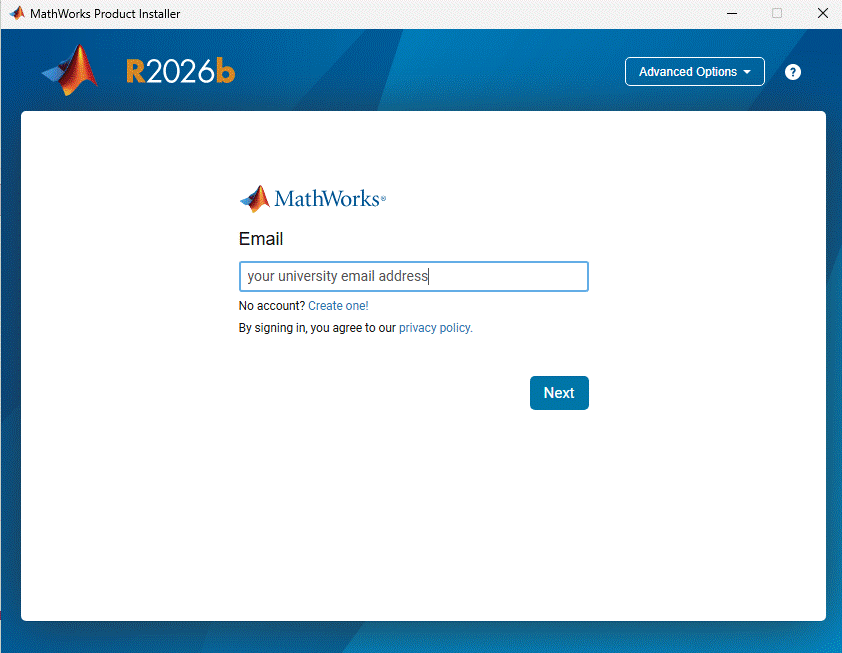
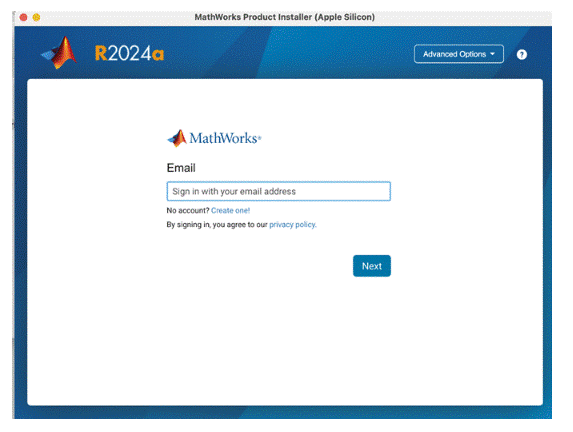
8. Your Installation file will begin to download. After completing the download, launch the installer and sign in with your university email address.
|
|
|
|
|
|
10. Complete the 2FA Sign-in process
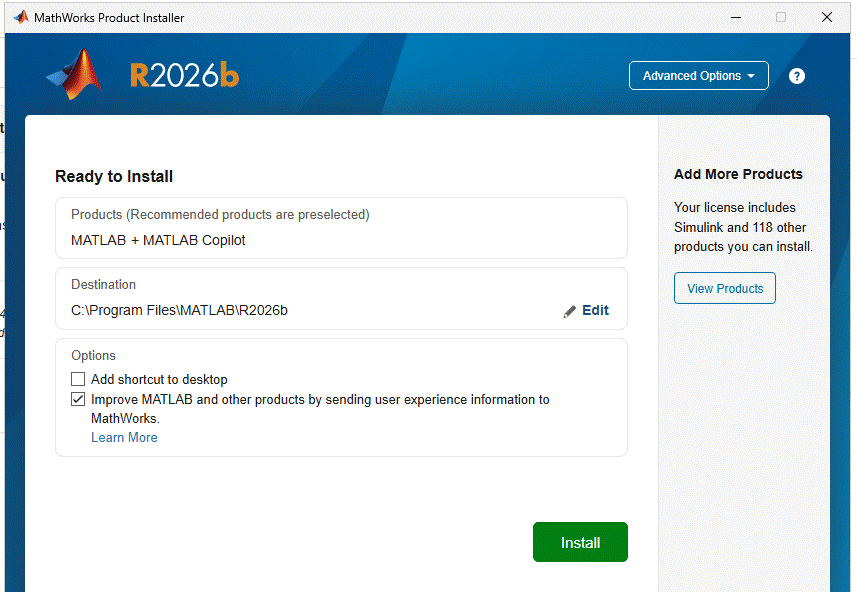
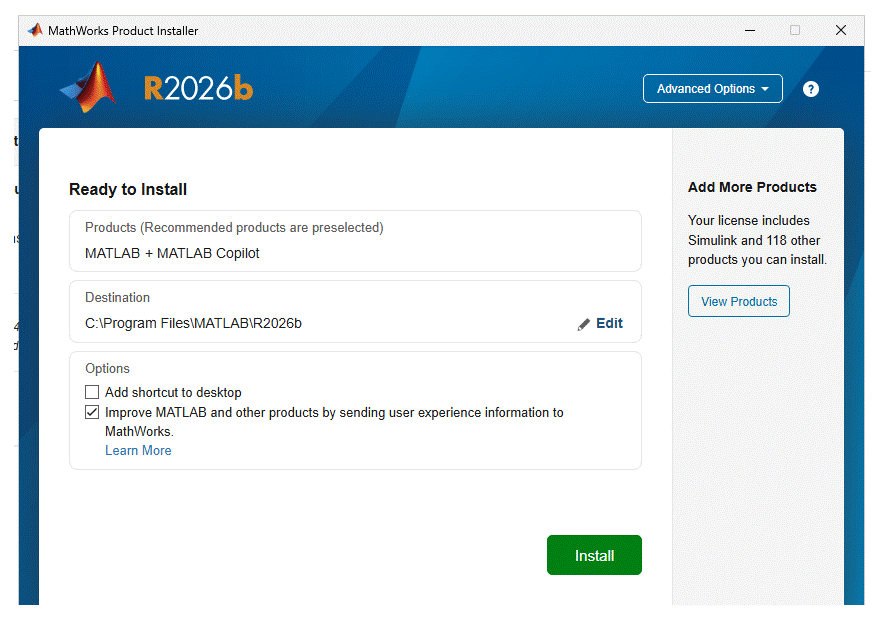
10. Accept the Eula. Matlab will connect to the license manager and select the license for your campus automatically. Select the View Products option to add the available extra products that are included with your license. Do NOT select any of the Advanced Options for licensing. Use the Install button to proceed.
|
|
|
|
|
|
11. The installation will run and let you know when it’s complete. That’s it. You’re done.
|
|
|
|
|
|
|
|
|
|
|
|
|
|
|
|
|
|
|
|
|
|
|
***The process for installing Matlab 2026 is the same as for 2024. *** |
|
|
|
|
|
1. Browse to www.mathworks.com and click Sign In in the upper right corner. |
|
|
|
|
|
|
|
|
|
|
|
2. Enter your university email address. |
|
|
|
|
|
|
|
|
|
|
|
|
|
|
|
|
|
|
|
|
|
|
4. Next, click open MATLAB in the middle of the page |
|
|
|
|
|
|
|
|
|
|
|
|
|
|
|
|
|
|
|
|
|
|
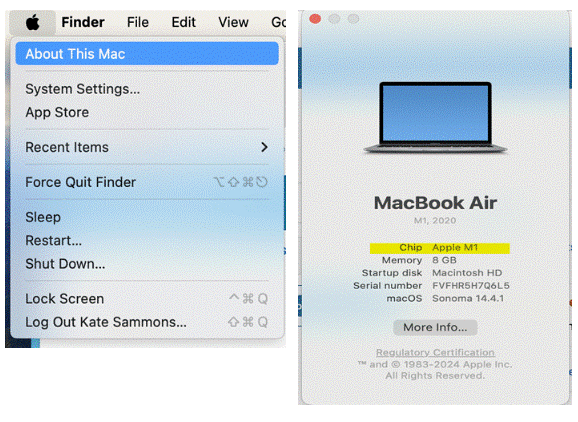
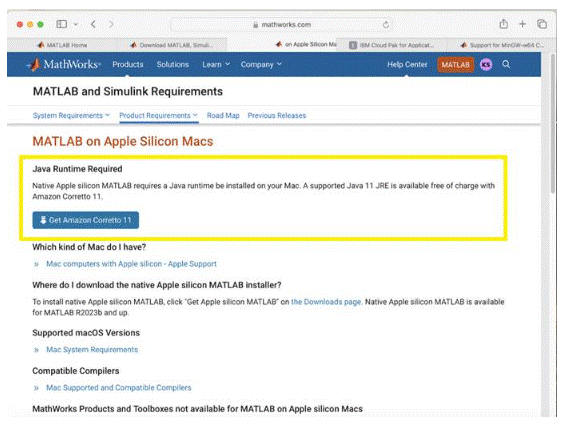
6. Check your processor type. If you have a Silicon Processor you will need Java Runtime. This is not needed for Intel processors. |
|
|
|
|
|
|
|
|
|
|
|
7. Click Get Amazon Corretto as the recommended, no‑cost, production‑ready Java distribution for Apple Silicon. Install the app once it’s downloaded. |
|
|
|
|
|
|
|
|
|
|
|
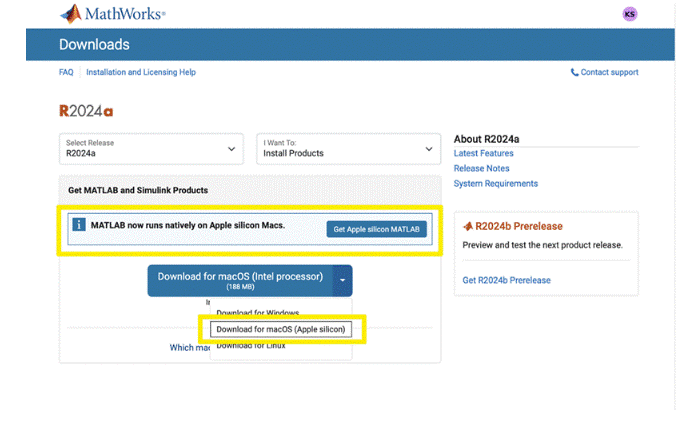
8. Once Amazon Corretto is installed, return to the Matlab installer and choose Intel or Apple Silicon to match the processor on your computer. |
|
|
|
|
|
|
|
|
|
|
|
9. Download the .dmg and double click it to start the installation. You will be asked to sign-in again with your University email address. Complete the 2FA sign-in. |
|
|
|
|
|
|
|
|
|
|
|
|
|
|
10. Accept the license. On the next page, Matlab will connect to the license manager and select the license for your campus automatically. Select the View Products option to add the available extra products that are included with your license. Do NOT select any of the Advanced Options for licensing. Use the Install button to proceed. |
|
|
|
|
|
|
|
|
11. The installation will run and let you know when it’s complete. That’s it. You’re done.
|
|
|
|
|
|
|
|
|
|
|
|
|
|
|
|
|
|
|
|
|
|
|
|
|
|
|
|
|
|
|
|
|
|
|
|
|
|
|
|
|
|
|
|
|
|
|
|
|
|
|
|
|
|
|
|
|
|
|
|
|
|
|
|

 Windows