|
Matlab 9.1 R2016b Concurrent
License Installation Instructions |
|
|
|
|
|
|
|
Due to firewall restrictions, particularly on off-campus
and wireless connections, you will need to connect to your campus VPN
service before installing and to use this software. |
|
|
|
|
|
1.
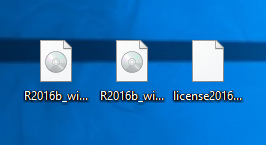
This offer is distributed via an
ISO file. In this example, we are installing Matlab
on a Windows 8.1 computer. Besides this file, you will also need to download
the License File. Right click the ISO files and choose mount from the menu.
If you are using Windows 7 or older please use WinZip to extract the ISO file
you download. |
|
|
|
|
|
|
|
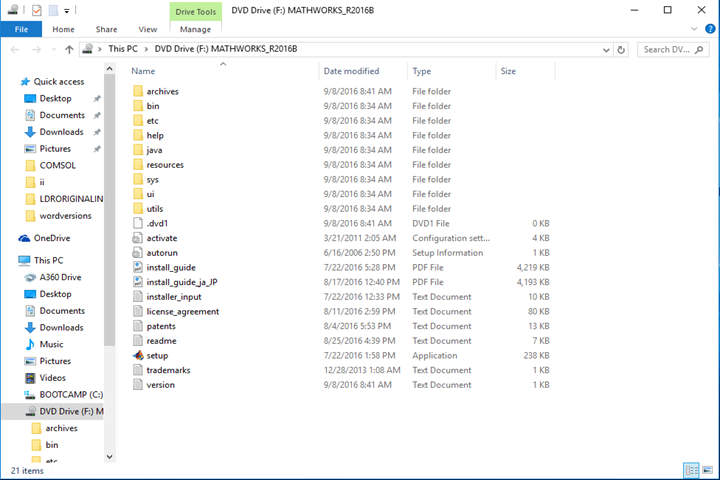
2.
When the window for Double click setup.exe. |
|
|
|
|
|
|
|
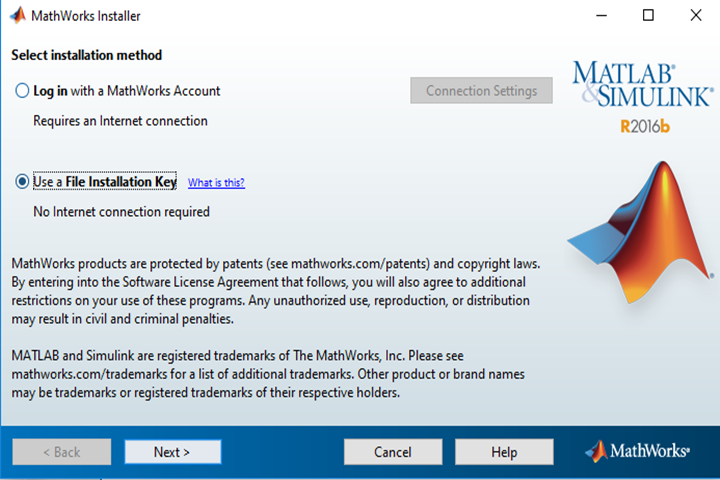
3.
Select Use a File Installation Key and click
on Next. |
|
|
|
|
|
|
|
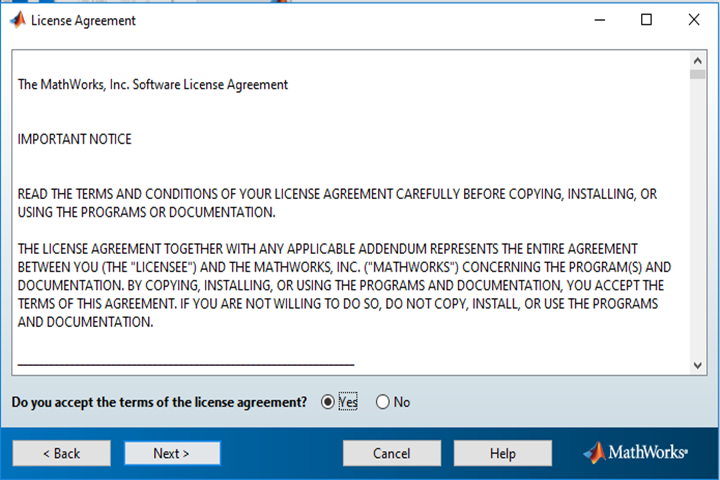
4.
Agree to the license by selecting Yes and clicking on Next. |
|
|
|
|
|
|
|
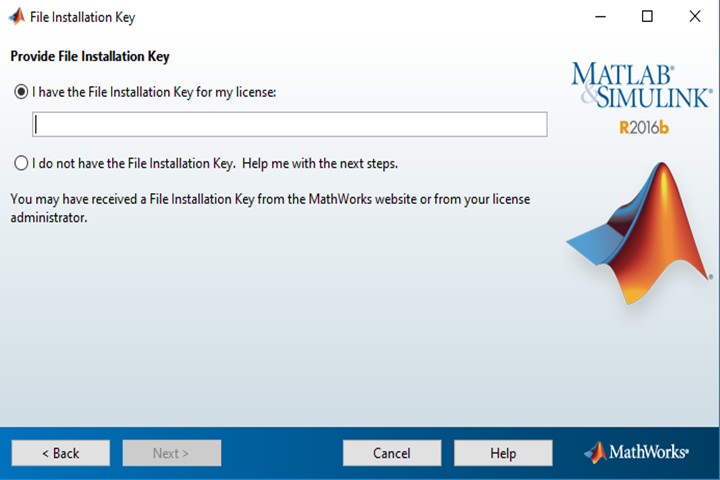
5.
Select I have the File Installation Key for my
license. Enter the file installation key and click on Next. The
installation key was provided to you when you
purchased the software. You can retrieve this number by logging into the
WebStore and clicking on Order History. Find this offer on your
list and click on the order number. |
|
|
|
|
|
|
|
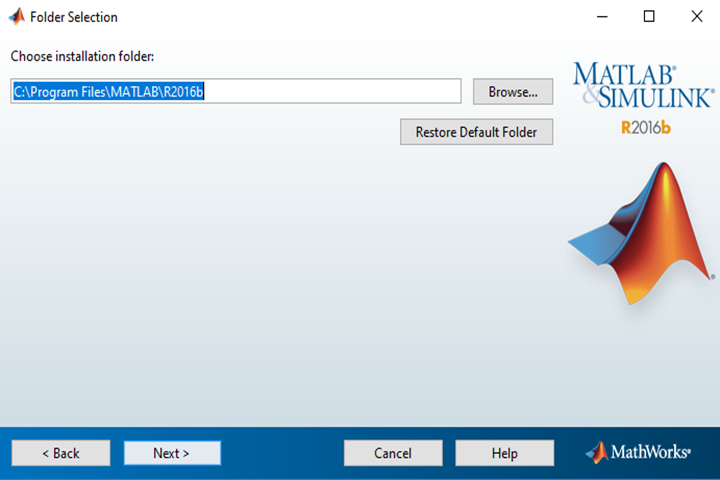
6.
Specify an installation folder and click on Next. |
|
|
|
|
|
|
|
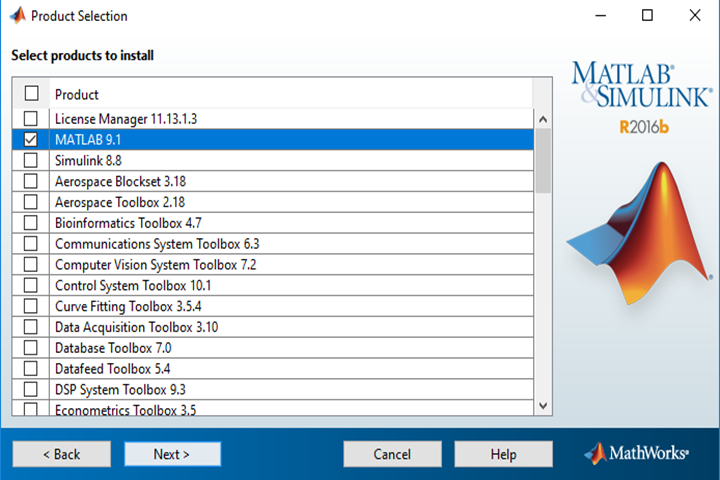
7.
Choose the product you wish to install and click on Next. DO
NOT INSTALL THE LICENSE MANAGER! |
|
|
|
|
|
|
|
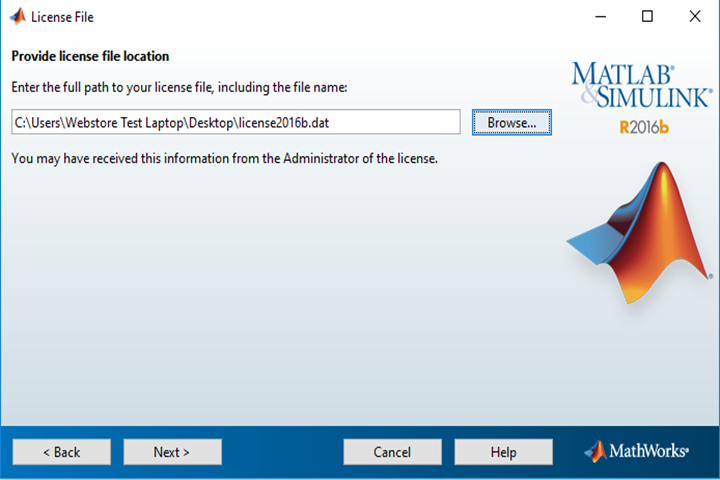
8.
Click on the Browse button. Browse to
the license file you downloaded from your Webstore order history and click
on Select. Click on Next. |
|
|
|
|
|
|
|
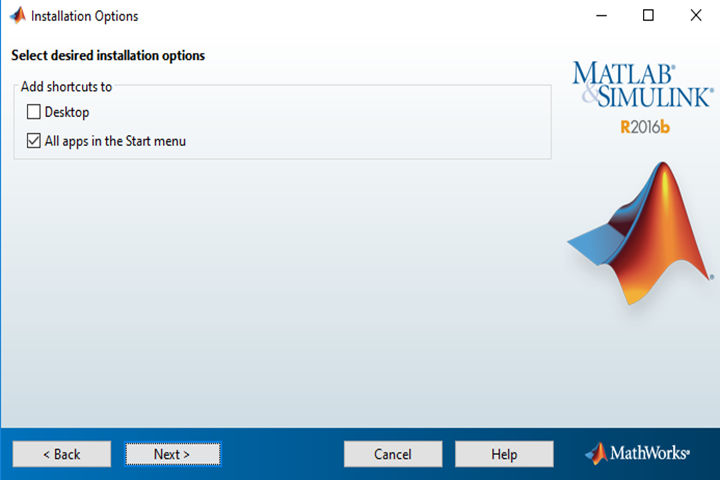
9.
Select your installation options and click on Next. |
|
|
|
|
|
|
|
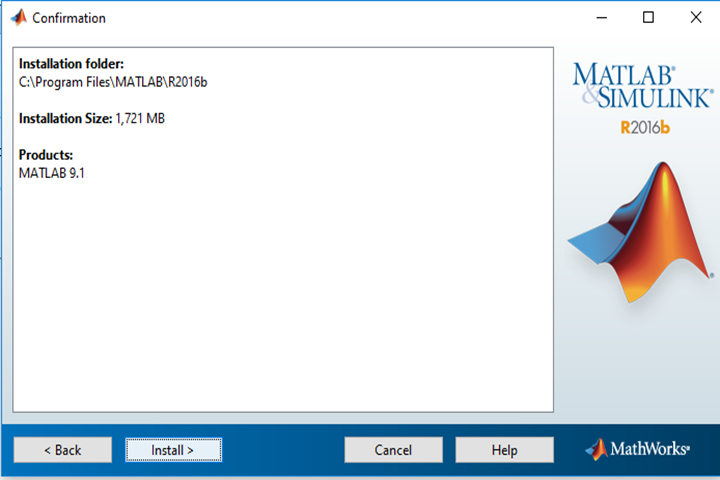
10.
Confirm your installation settings and click on Install. |
|
|
|
|
|
|
|
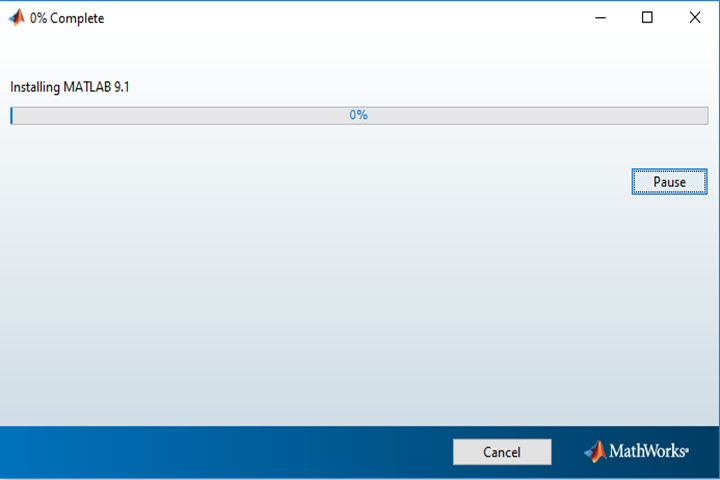
11.
The installation will begin and take several minutes. |
|
|
|
|
|
|
|
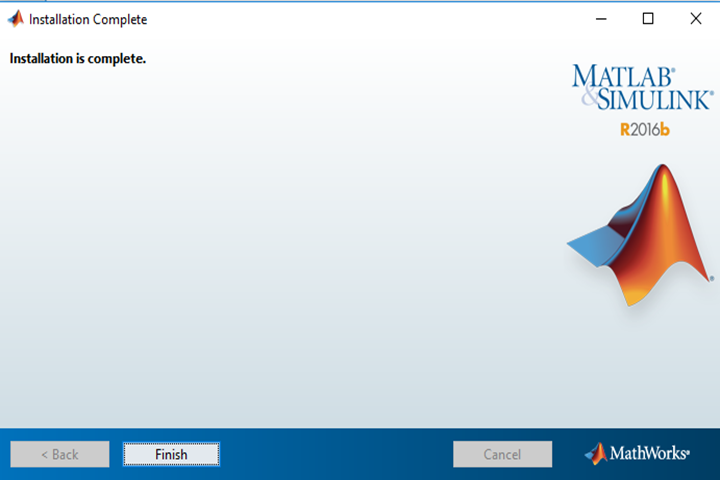
12.
The installation is complete. Click Finish. |
|
|
|
|
|
|
|
You are
now ready to use Matlab 9.1 R2016b. Remember, that
if you are off-campus or using wireless you must use the VPN to access the
campus network. |
|
|
|
|
|
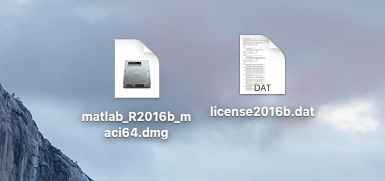
1. Double
click the file iso file you downloaded from the
WebStore. Besides this file you will also need to
download the License File. |
|
|
|
|
|
|
|
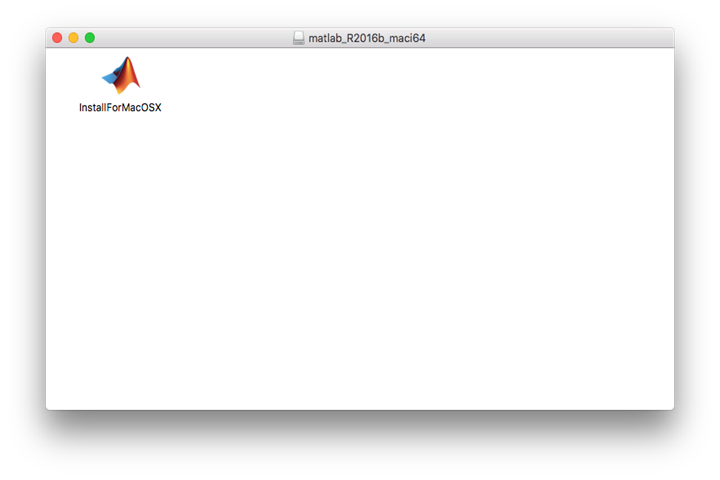
2. The
file will open and place a disk image called MATHWORKS_R2016a on your
desktop. Double click InstallForMacOSX.app
to begin the installation. |
|
|
|
|
|
|
|
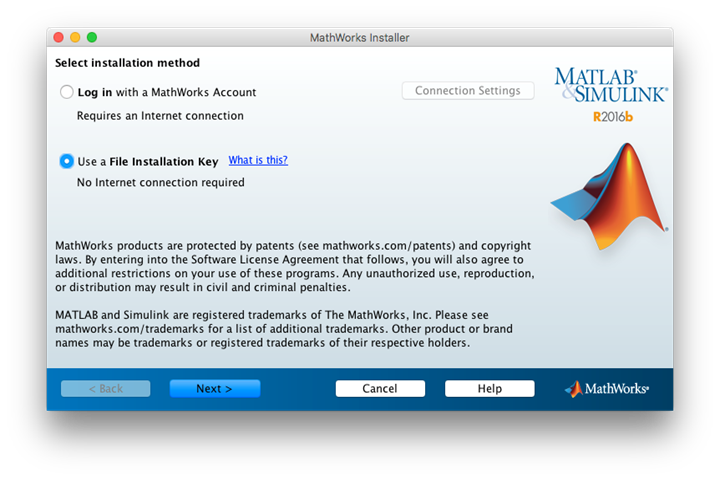
3. Select Use a File Installation Key and click
on Next. |
|
|
|
|
|
|
|
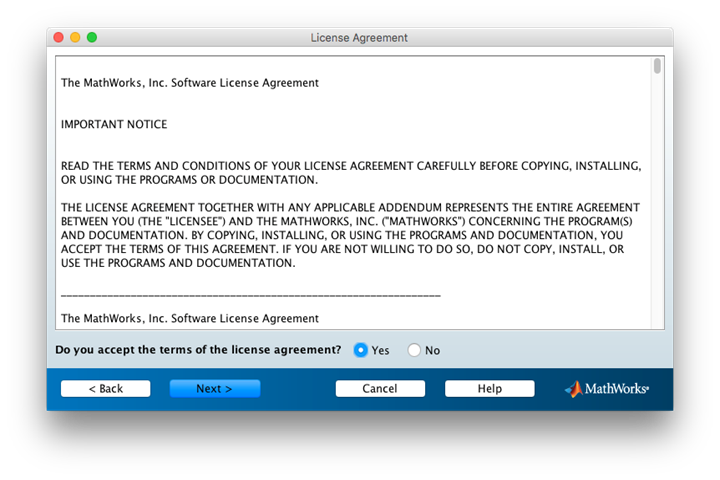
4. Agree to the license
by selecting Yes
and clicking on Next. |
|
|
|
|
|
|
|
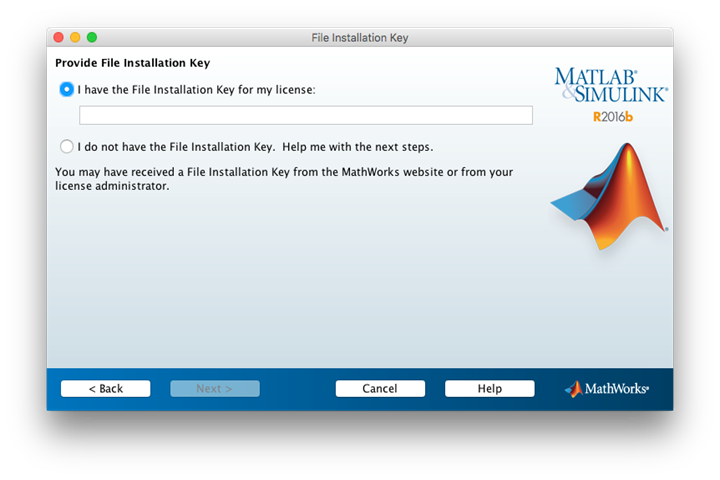
5. Select I have the file installation key for my
license. Enter the file installation key number and click on Next. The installation key was provided to you when you purchased the software. You
can retrieve this number by logging into the WebStore and clicking on Order
History. Find this offer on your list and click on the order number. |
|
|
|
|
|
|
|
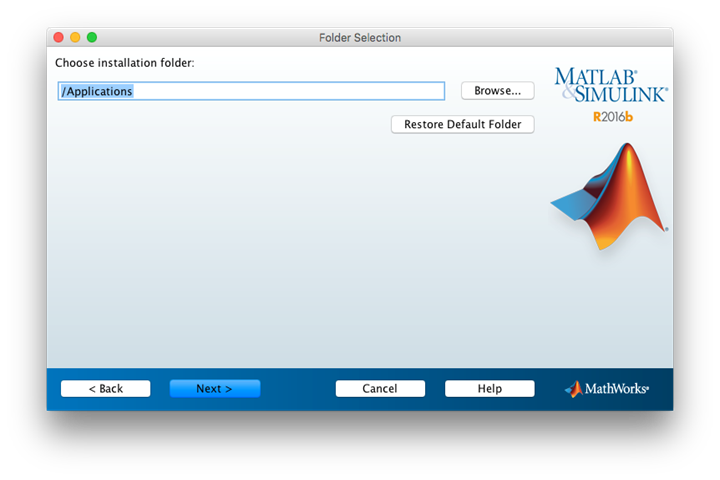
6. Select an
installation location and click on Next. |
|
|
|
|
|
|
|
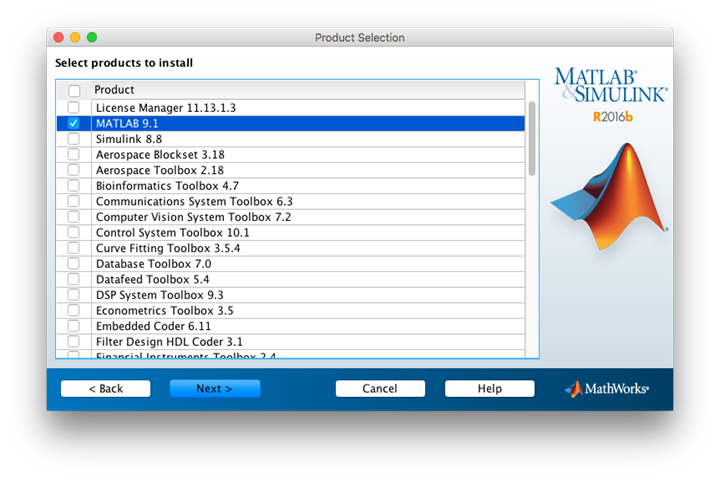
7. Choose the product
you wish to install and click on Next.
DO NOT INSTALL THE LICENSE MANAGER! |
|
|
|
|
|
|
|
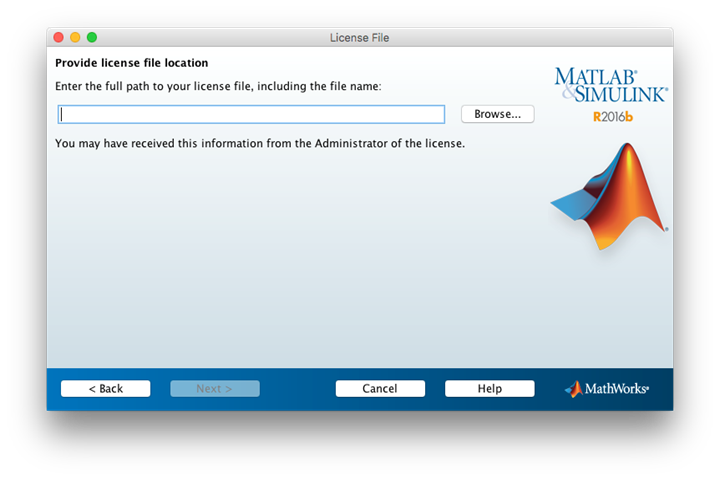
8. Click on Browse. Browse to the location of the
license.dat file you downloaded earlier and click on Open. Click on Next. |
|
|
|
|
|
|
|
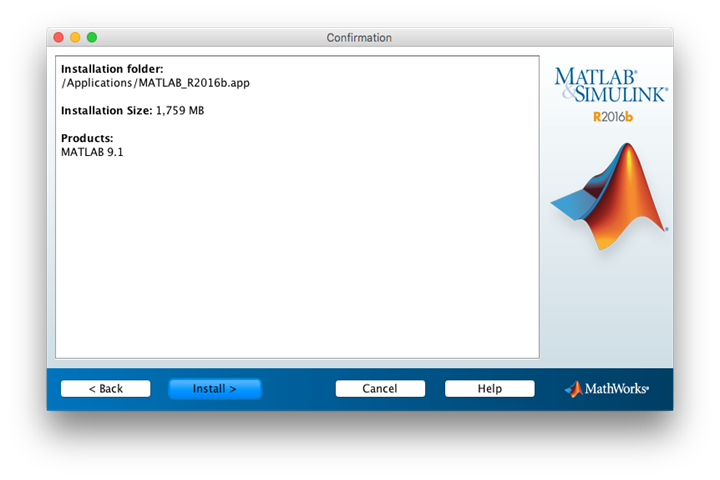
9. Confirm your
installation settings and click on Install. |
|
|
|
|
|
|
|
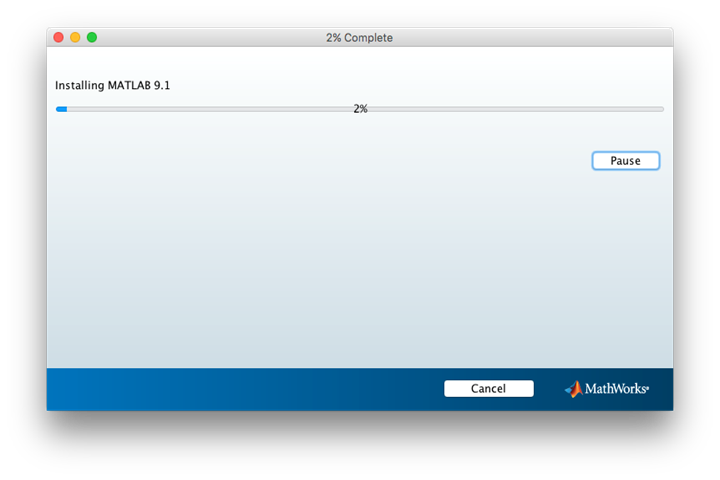
10. The
installation will begin and will take several minutes. |
|
|
|
|
|
|
|
11.
When your installation completes, click on Finish. You are now ready to use Matlab 9.1 R2016a. Remember that if you are off-campus or
using wireless you must use the VPN to access the campus network. |
|
|