
SAS 9.4 Installation Instruction
 Windows
- You can install this software
from media or from the ISO files (v9.4 only).
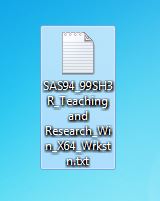
In addition to the media set or ISO files you will also need the license file.
You can retrieve these files by logging into the WebStore and clicking on Order History.
The download
link is on this page. Choose the license file that matches your version of SAS
and bit of Windows.
- To prevent wasting time, make
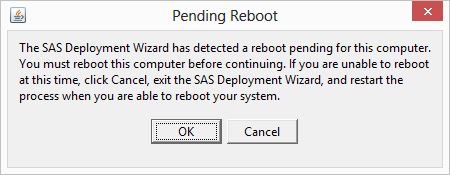
sure you reboot your computer before starting this installation.
Otherwise, you
may spend an hour going through the installation process only to see the below screen later in that process.
- Installing from DVD, insert disk
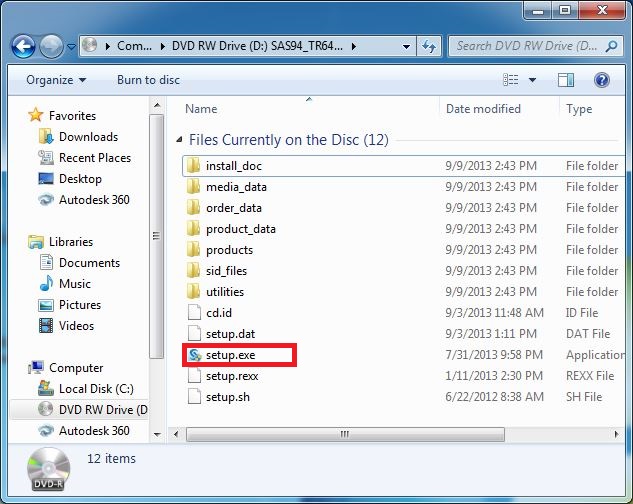
1 into the DVD drive of your computer and double click setup.exe.
OR
Installing from a downloaded ISO, right click each of the ISO files and choose Mount from the menu.
Double click the
ISO DSK1 and then double click setup.exe.
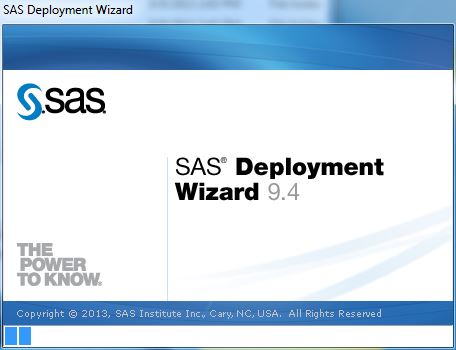
- The SAS Deployment Wizard will
open.
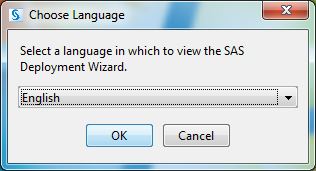
- Choose a language and click on OK.
- The SAS Deployment Wizard will
appear again. In our test installation this window may appear for 15+
minutes.
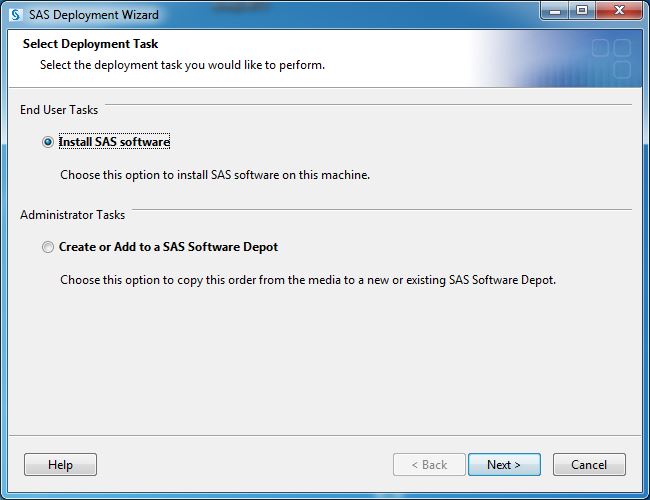
- Select Install SAS Software
and click on Next.
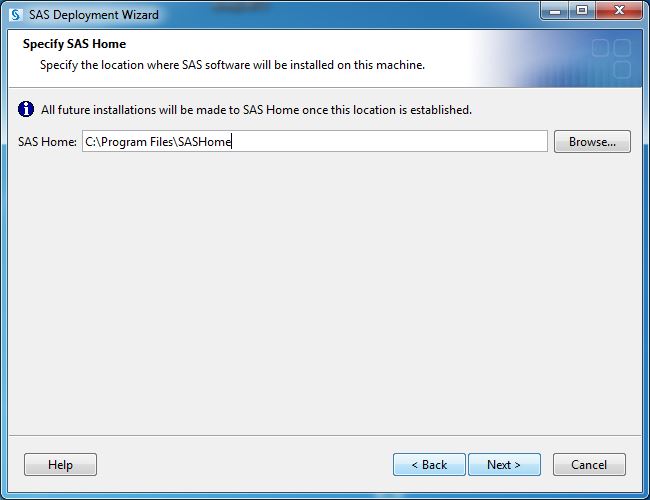
- Select a destination location
for the installation and click on Next.
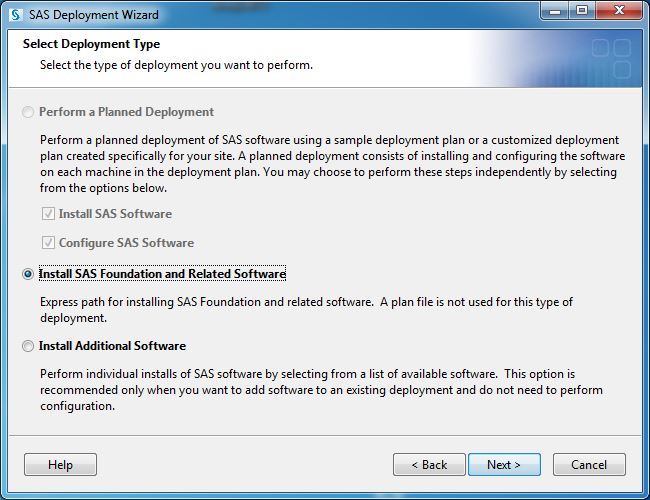
- Select Install Foundation and Related
Software and click on Next.
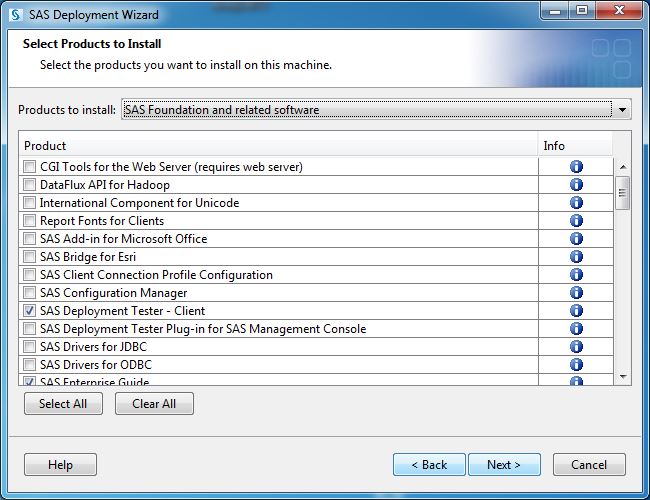
- Select the products you wish to
install and click on Next. In our example we are
installing the default selection.
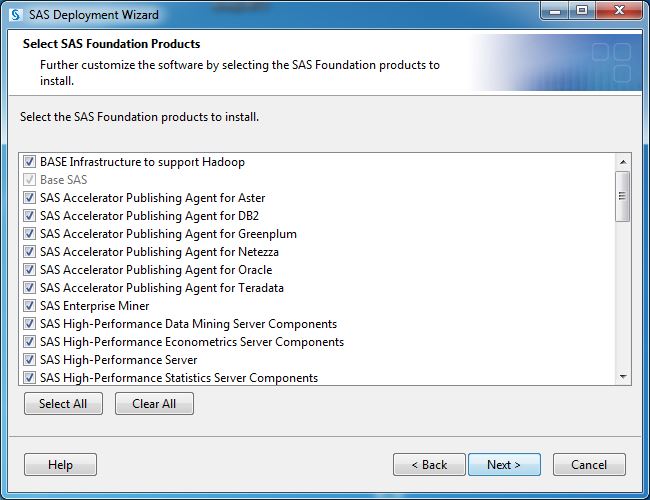
- Select the foundation software
you wish to install and click on Next.
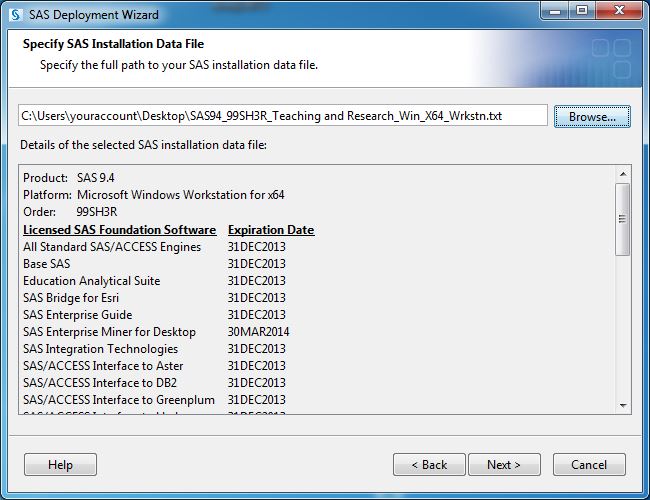
- Select a sid
file. Click on Browse. See step one for instructions on retrieving
this file.
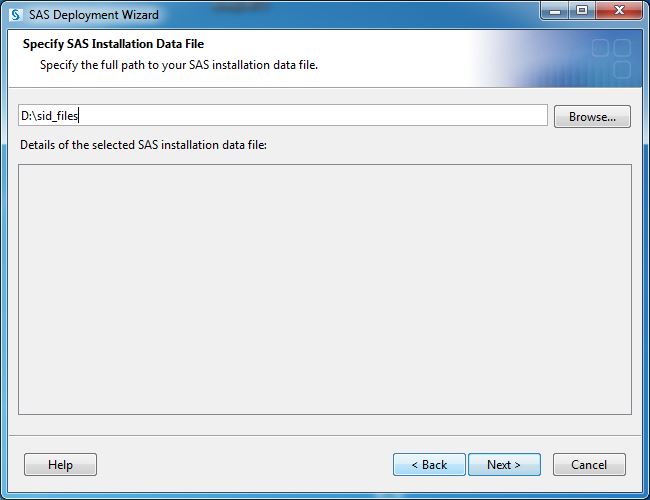
- Browse to
the file on your computer and click on Open.
Click on Next.
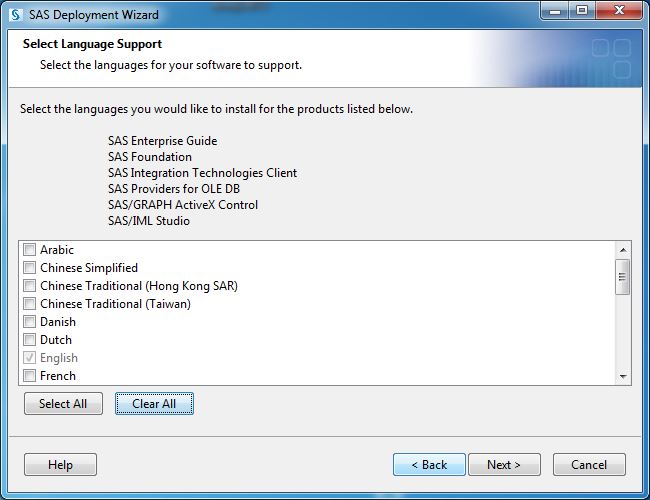
- Select the languages you wish
to install and click on Next. English is set by
default.
You can click on
Clear All and only
install the English language support.
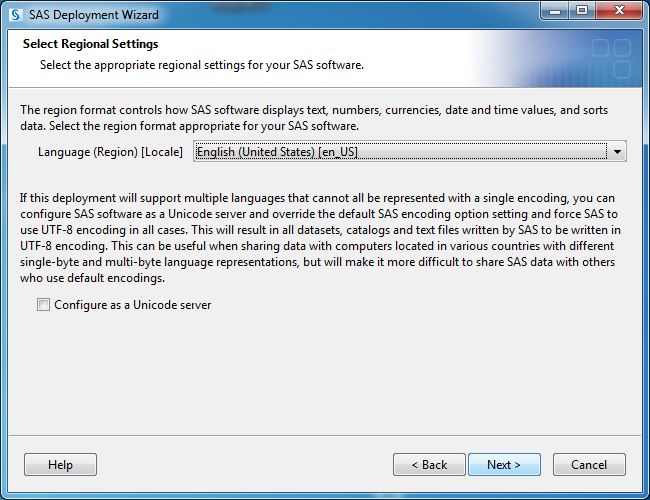
- Select the regional settings
and click on Next.
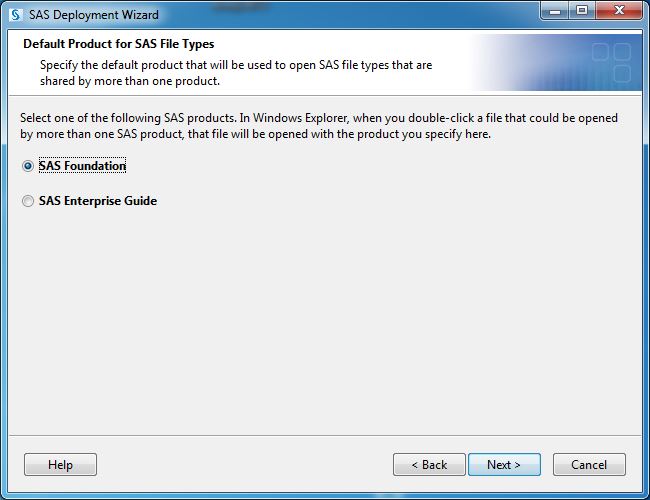
- Select the default product for
SAS file types and click on Next.
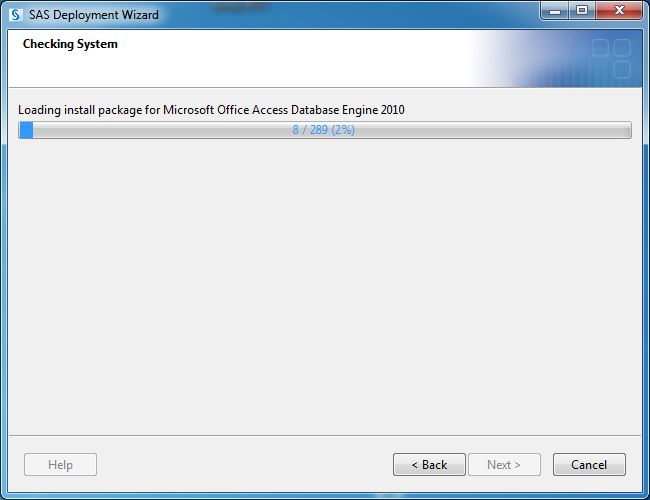
- The install packages will load.
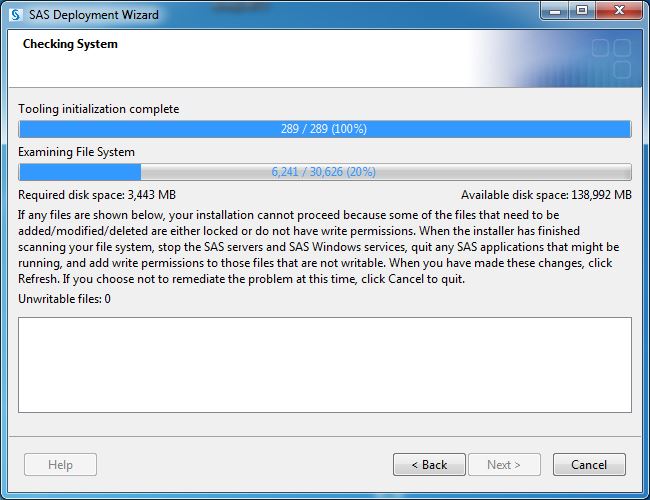
- You
system will be checked.
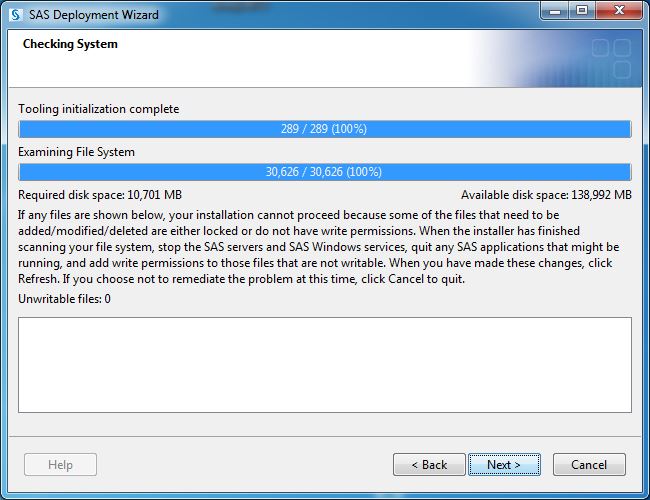
- Click on Next
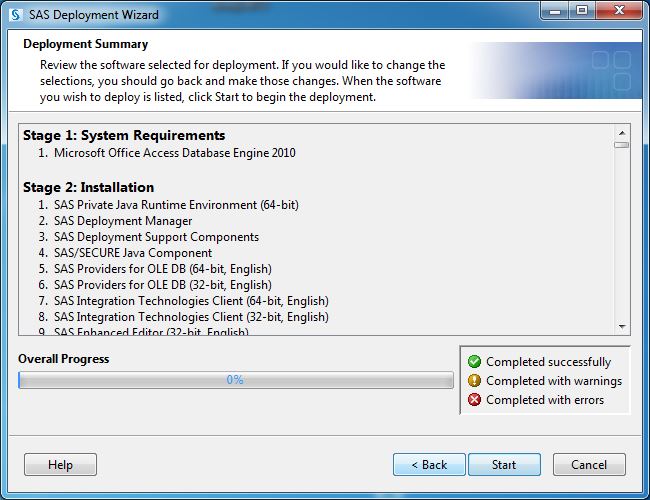
- Review your installation and
click on Start.
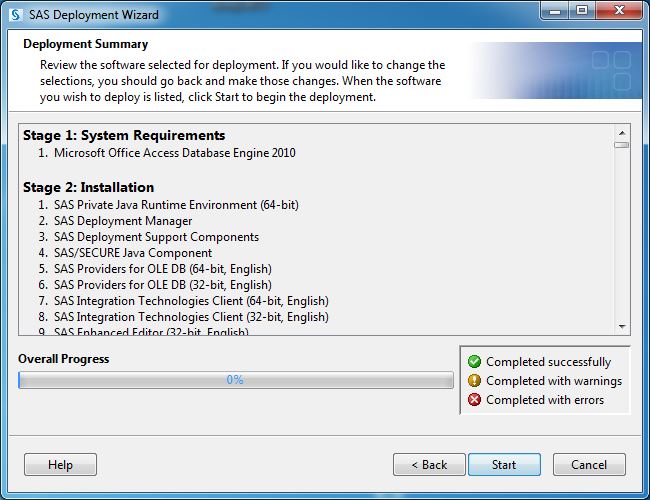
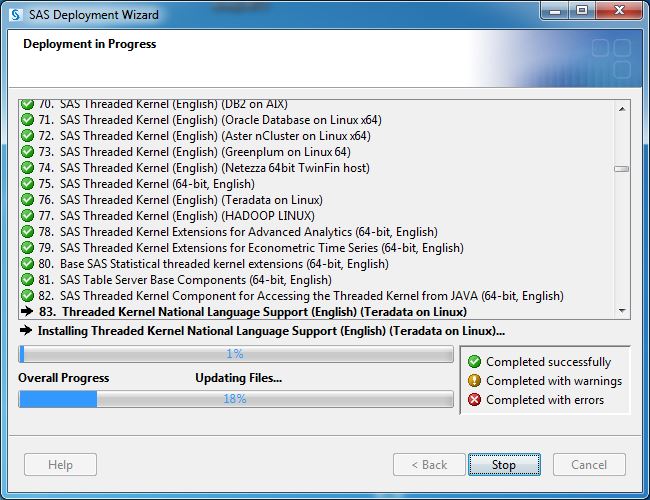
- The installation will begin and
will take several hours.
- At some point during the
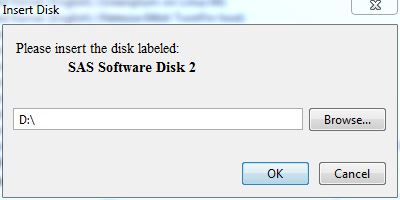
installation, you will be prompted to insert another disk or to indicate
the location of the next mounted ISO file.
Manually eject Disk 1. Insert Disk 2 and click on OK. If using the mounted ISO files browse to the drive letter of the next disk.
The installation will continue. During the installation process you will be asked to switch disk back and forth multiple times.
There are server
disks or files in this set.
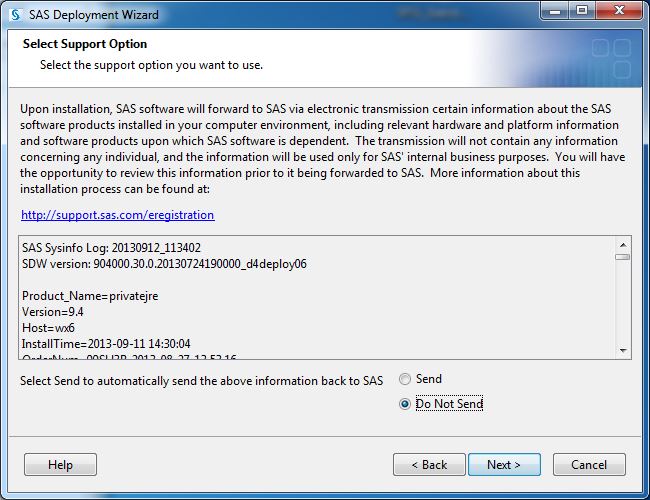
- Select Do Not Send and click on Next.
- Click on Finish.
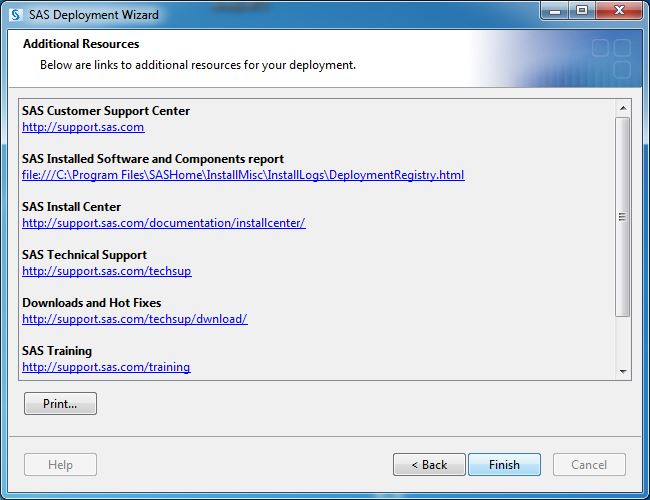
- Your default web browser will
open with a deployment Summary. You may close this window.
- You
are now ready to use SAS 9.4.