|
|
|
|
SecureCRT and SecureFX 8.0 Installation Instructions |
|
|
|
|
|
|
|
|
|
|
|
|
|
|
|
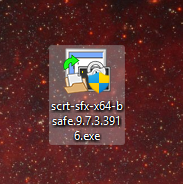
1. Double click on the .exe file you downloaded from the WebStore. |
|
|
|
|
|
|
|
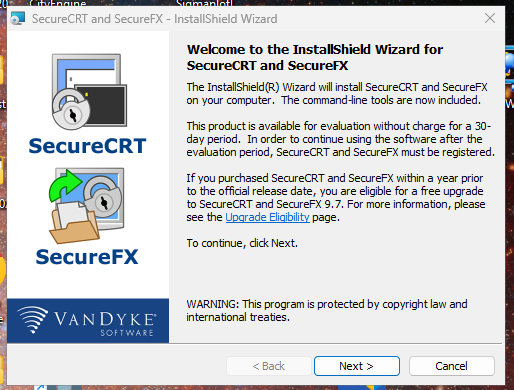
2. Click Next to begin the install process |
|
|
|
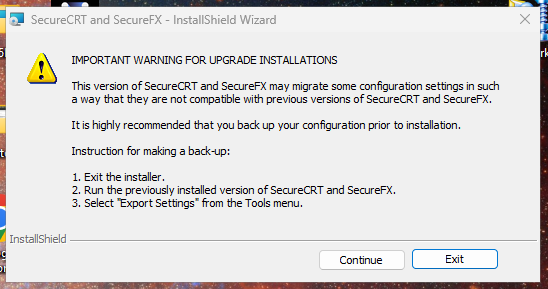
3. Read the Warning for Upgrade Installations and take any necessary backup precautions
|
|
|
|
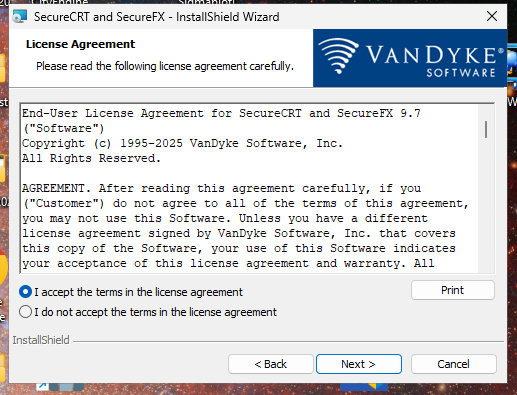
4. Accept the license agreement. Click on Next. |
|
|
|
|
|
|
|
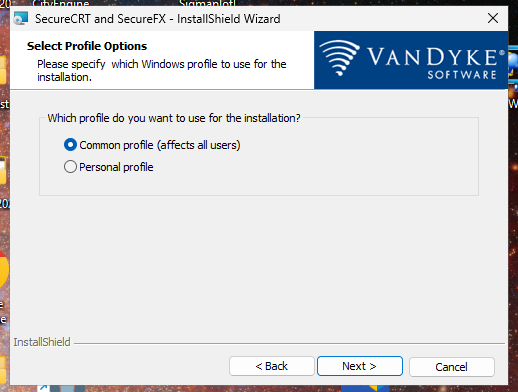
5. Select your desired Profile Options and click on Next. |
|
|
|
|
|
|
|
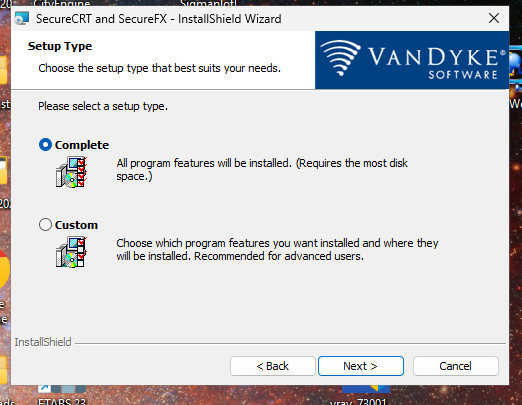
6. Select your desired Setup Type and click on Next. |
|
|
|
|
|
|
|
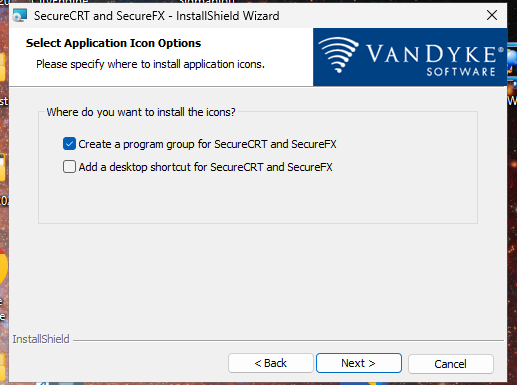
7. Select your desired Icon Options and click on Next. |
|
|
|
|
|
|
|
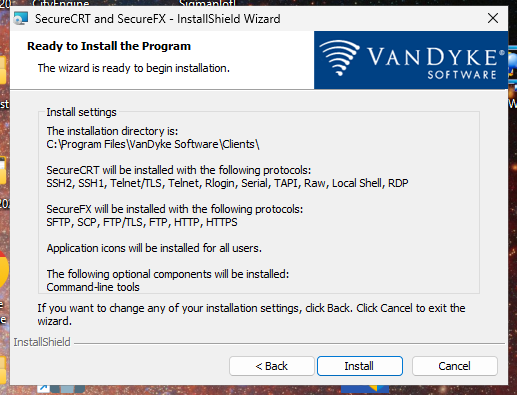
8. Click Install to begin the installation process. |
|
|
|
|
|
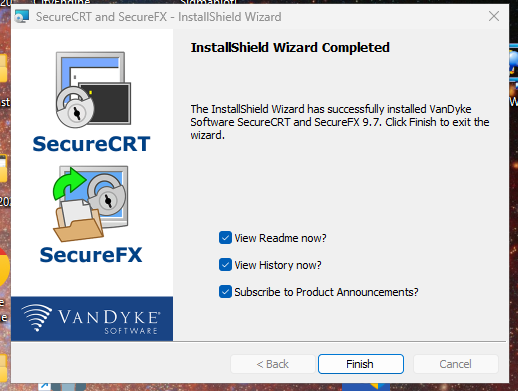
9. The installer will finish. |
|
|
|
|
|
|
|
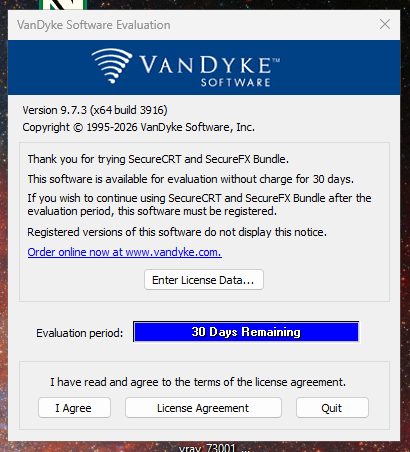
10. The first time your run SecureCRT you will need enter the License Data. |
|
|
|
11. Click on Enter License Data. |
|
|
|
|
|
|
|
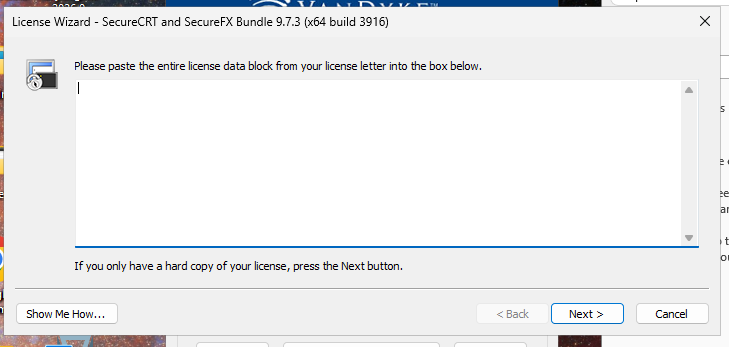
12. Copy and paste the entire licensing information from your Order History in the box below and click on Next. You can retrieve this information by logging into the Webstore and clicking on Order History. Find this offer on your list and click on the order number for this offer. The licensing information is on this page.
|
|
|
|
|
|
|
|
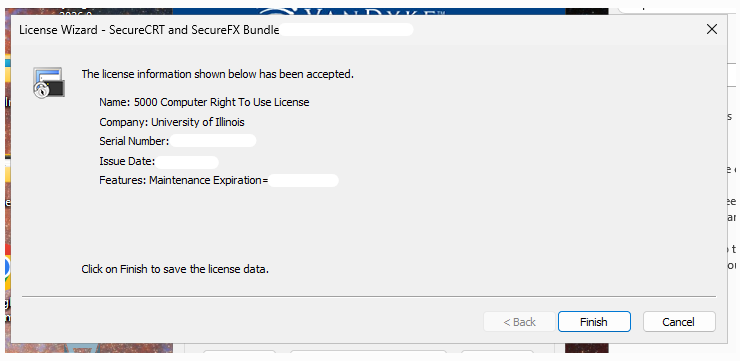
13. Click on Finish. |
|
|
|
|
|
|
|
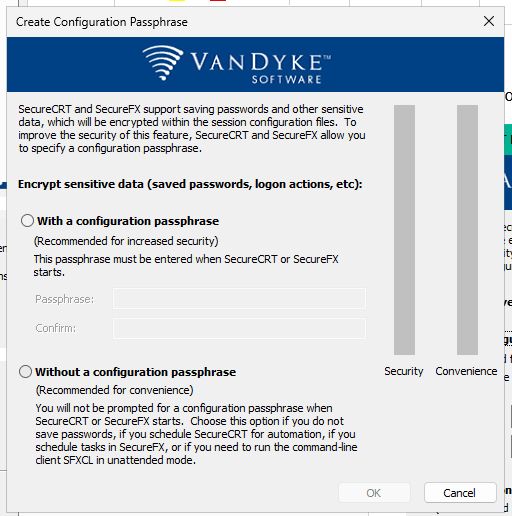
14. Decide if you want to use a passphrase and click on OK. |
|
|
|
|
|
|
|
15. Complete the same process for SecureFX. You are now ready to use both applications. |
|
|
|
|
|
|
|
|
|
|
|
|
|
The installation process for the latest version of Secure CRT and FX has been validated as same as the following instructions.
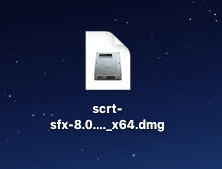
1. Double click on the .dmg file you downloaded from the WebStore. |
|
|
|
|
|
|
|
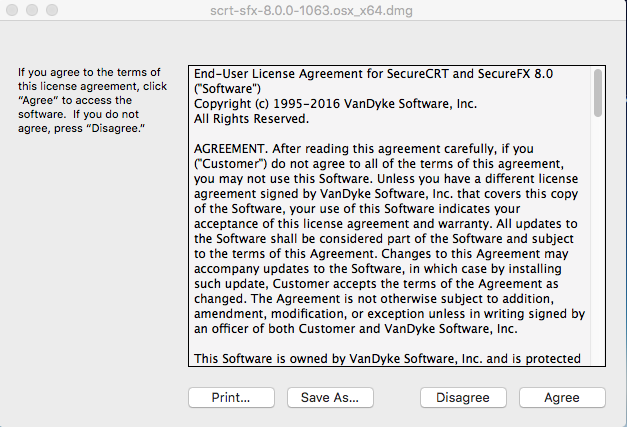
2. Agree to the License Agreement. |
|
|
|
|
|
|
|
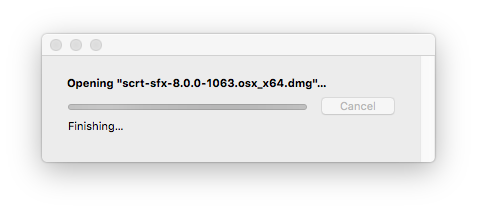
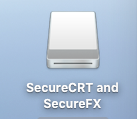
3. The disk image will mount to your computer's desktop. |
|
|
|
|
|
|
|
|
|
|
|
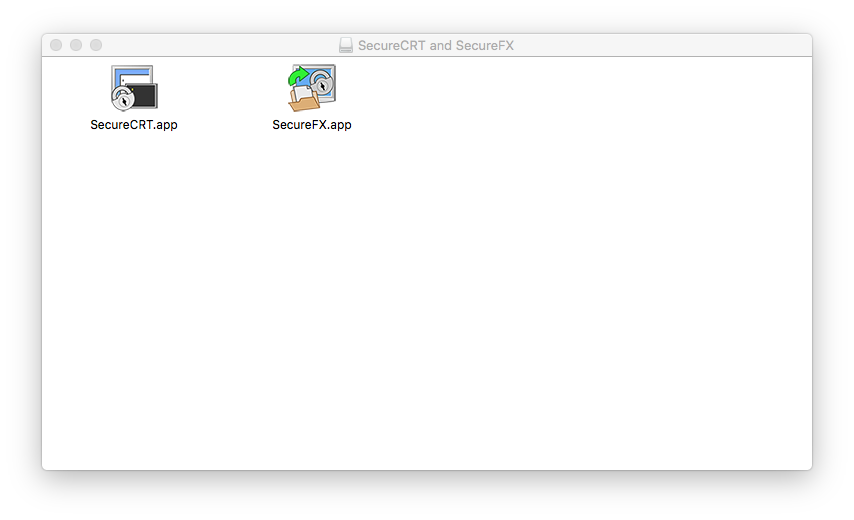
4. The below window should automatically open. If it does not double click on the disk image that was mounted in step 3. |
|
|
|
|
|
|
|
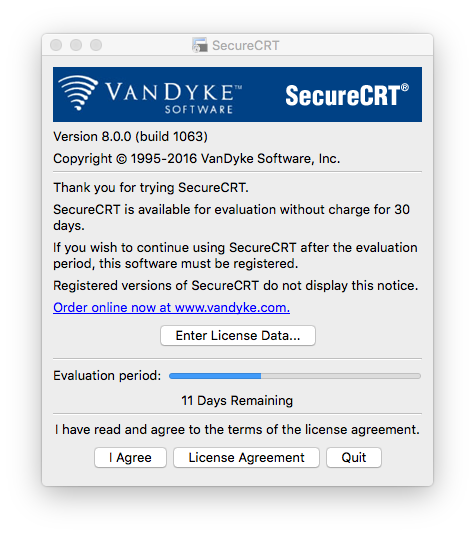
5. Copy the SecureCRT.app and SecureFX.app file to your applications folder. Double click on the SecureCRT.app file. Click on Enter License Data. |
|
|
|
|
|
|
|
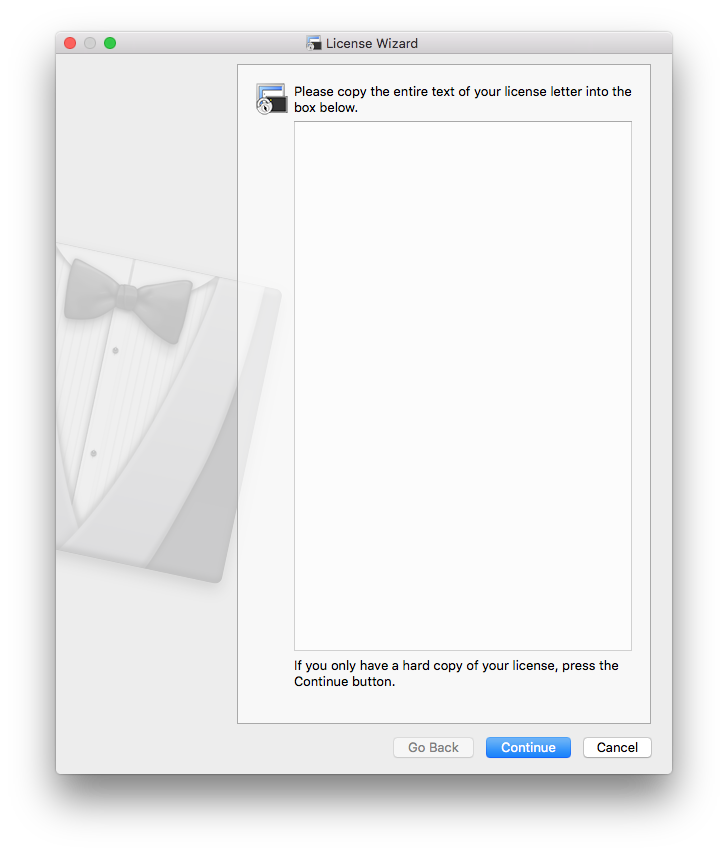
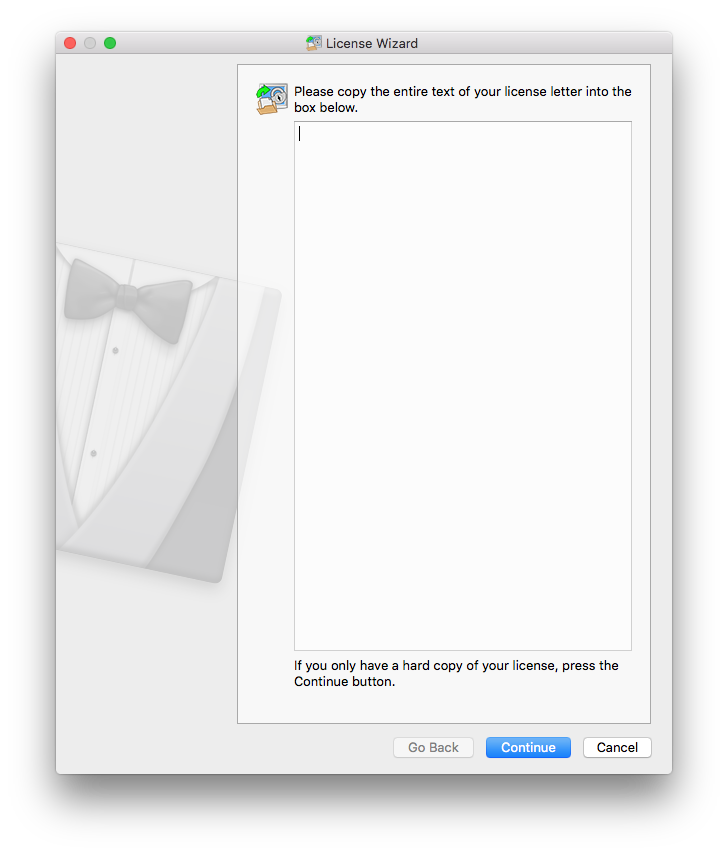
6. Copy and paste the entire licensing information from your Order History in the box below and click on Continue. You can retrieve this information by logging into the Webstore and clicking on Order History. Find this offer on your list and click on the order number for this offer. The licensing information is on this page. |
|
|
|
|
|
|
|
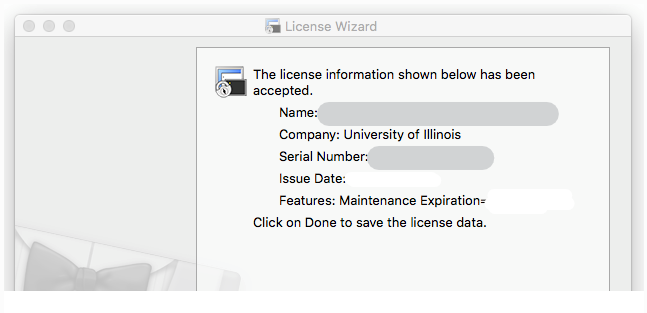
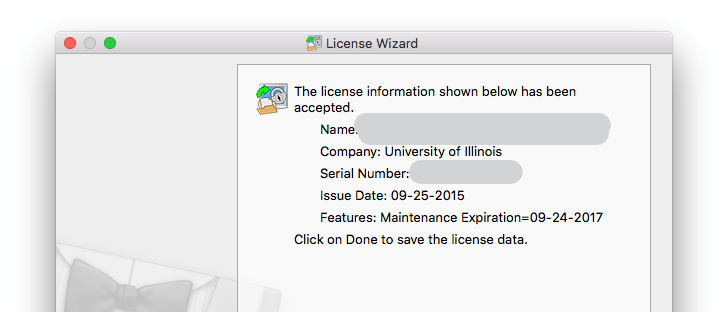
7. Click on Done. |
|
|
|
|
|
|
|
|
|
|
|
8. You are now ready to use SecureCRT for the Mac. |
|
|
|
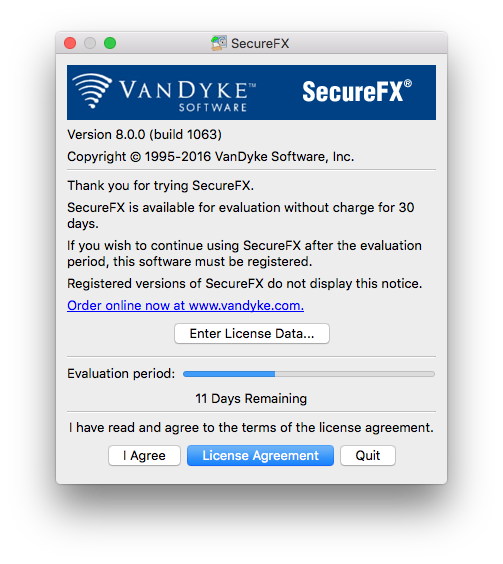
9. Double click the SecureFX.app file in your applications folder. A box will pop up. Click on Enter License Data. |
|
|
|
|
|
|
|
|
|
10. Click on Go Back. Copy and paste the entire licensing information from your Order History in the box below and click on Continue. You can retrieve this information by logging into the Webstore and clicking on Order History. Find this offer on your list and click on the order number for this offer. The licensing information is on this page. |
|
|
|
|
|
|
|
11. Click on Done. |
|
|
|
|
|
|
|
12. You are now ready to use SecureFX for the Mac. |
|
|
|
|
|
|
|
|
|
|
|
|